AIStor Object Store



Operating System:

Terminal:


Shell:


Editor:



Package Manager:


Programming Language:



Utility:


Operating System:
Terminal:
Shell:
Editor:
Package Manager:


Programming Language:

Utility:

Operating System:

Terminal:
Shell:

Editor:
Package Manager:

Programming Language:


Utility:

Operating System:

Terminal:

Shell:


Editor:



Package Manager:


Programming Language:




Utility:

Operating System:
Terminal:
Shell:
Editor:
Package Manager:

Programming Language:

MinIO AIStor is a high-performance, software-defined object storage platform built for AI and modern data workloads. Developed by MinIO, it is fully S3-compatible and cloud-native. It delivers extreme throughput and low latency for large-scale AI training and inference. AIStor supports petabyte-scale deployments on commodity hardware. It emphasizes simplicity, scalability, and cost-efficient performance for data-intensive environments.
For more information, please refer to the MinIO AIStor documentation.
License
This app requires a valid MinIO AIStor license file to start. Provide it using the AIStor license file parameter.
Getting a free license
Go to
https://www.min.io/pricingUnder Free, click Get Started and complete the signup flow
Download the AIStor license file you receive and upload it to the UCloud file system
In UCloud, launch the AIStor app and select the license file in the AIStor license file parameter
This license key unlocks all MinIO AIStor features for standalone single node deployments.
Initialization
For information on how to use the Initialization parameter, please refer to the Initialization - Bash script section of the documentation.
AIStor Server
The AIStor Object Store application creates a server instance, which is a self-contained repository organized in buckets. Buckets have a flat structure where data is divided into discrete units called objects. The storage structure provides a unique identifier, that allows the objects to be found over a distributed filesystem, and metadata describing the data.
As an example, consider a repository folder called aistor-repo with the following structure:
aistor-repo
├── data1
│   ├── file1
│   ├── file2
│   ├── file3
│   └── file4
├── data2
│   ├── image1.png
│   └── image2.png
└── data3
    └── doc.txt
In this case the storage volume contains three buckets with different file types. Buckets and files (objects) can be added and modified using the AIStor Console, the AIStor Client, or one of the MinIO Software Development Kits.
Note
In case a new object storage is created starting from a directory that is not empty, the top-level folders automatically become MinIO buckets, but the files are not converted into objects. They must be added manually to the object storage volume.
AIStor Console
The MinIO AIStor Console is enabled when the application is lauched with a configured public URL. Administrator credentials are automatically generated at job startup and printed to the application’s standard output.
Once the service is running, the AIStor Console can be accessed via:
Console URL: https://app-aistor.cloud.sdu.dk/console/login
In this example, app-aistor.cloud.sdu.dk represents the deployed public link of the application.
The AIStor Console provides an intuitive, web-based graphical user interface for managing object storage resources such as buckets and objects. An example of the console interface is shown below.
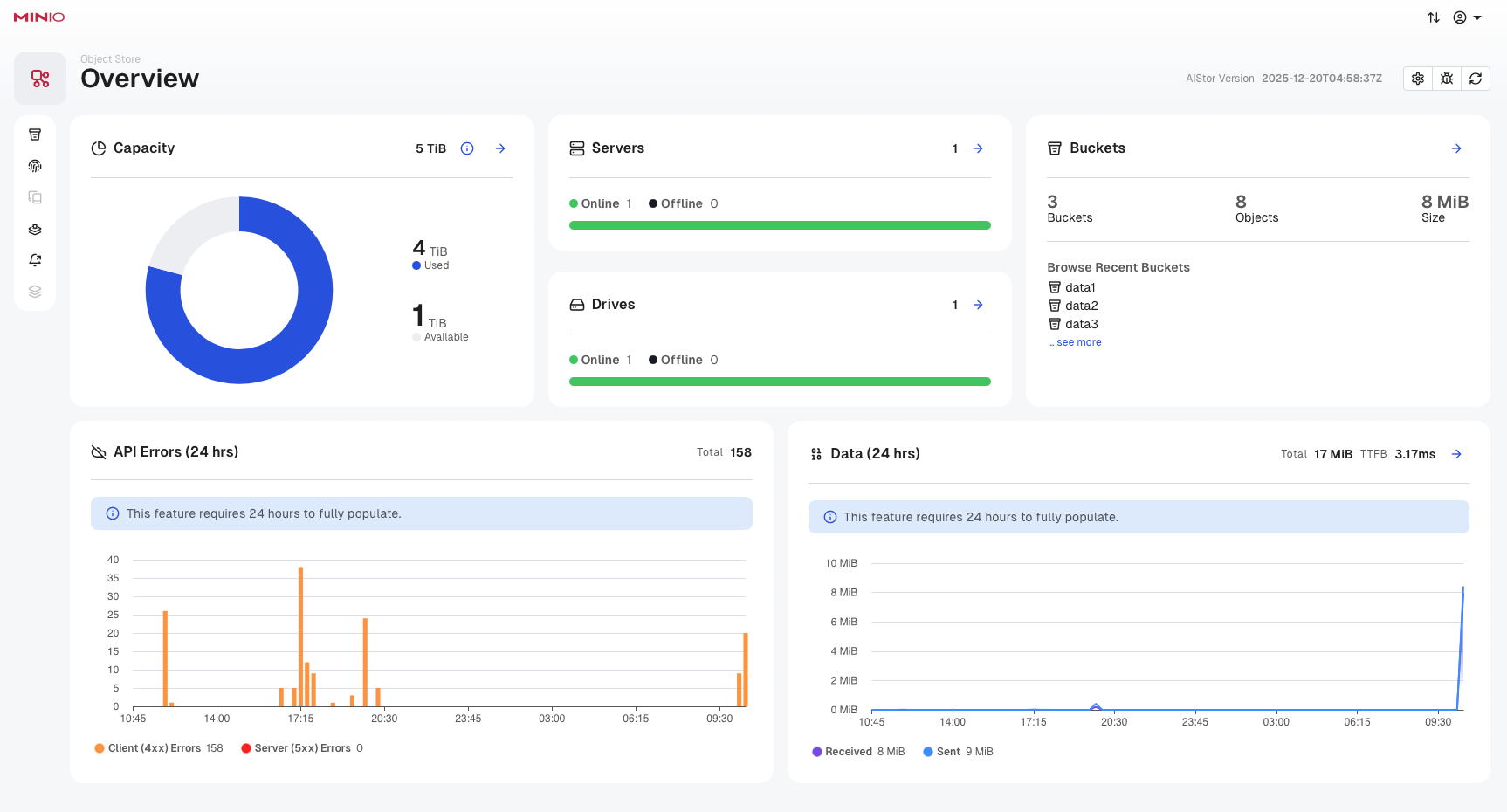
Using the AIStor Console, users can perform common data management tasks, including:
Create and delete buckets
Enable or disable bucket versioning
Configure bucket quotas
Upload files and folders
Download files
Delete files and folders
Preview image and text files
In addition to data management, the AIStor Console supports administrative operations such as identity and access management (IAM), metrics and log monitoring, and server configuration.
AIStor Client
The MinIO AIStor Client command-line tool provides an alternative way to manage object-based storage volumes via the app's built-in terminal interface,
By default, the MinIO Client connects to the server with the alias name ucloud.
The following list provides a quick overview of using the mc command. For a more in-depth tutorial, check the official guide.
Test connection to the server
$ mc admin info ucloud
Tip
● localhost:9000
Uptime: 27 minutes
Version: 2023-02-27T18:10:45Z
Network: 1/1 OK
Drives: 1/1 OK
Pool: 1
Pools:
1st, Erasure sets: 1, Disks per erasure set: 1
1.2 GiB Used, 3 Buckets, 12 Objects, 20 Versions
1 drive online, 0 drives offline
Get administrator login credentials
$ mc alias list
Tip
ucloud
URL : http://localhost:9000
AccessKey : YWY4OGJmNDM1MDhhNzU4YTFjZDI0MmRh
SecretKey : MmZkOTMzMjgyYTY3NTVmNDhlNGEzMThk
API : s3v4
Path : auto
List buckets and objects
$ mc ls --recursive ucloud
Tip
[2022-08-11 05:02:16 UTC] 5.4MiB STANDARD data1/file1
[2022-08-09 08:45:11 UTC] 11MiB STANDARD data1/file2
[2022-08-09 08:45:11 UTC] 11MiB STANDARD data1/file3
[2022-08-09 08:45:11 UTC] 16MiB STANDARD data1/file4
[2022-08-11 08:03:19 UTC] 1.2MiB STANDARD data2/image1.png
[2022-08-11 07:40:29 UTC] 1.2GiB STANDARD data2/image2.png
[2022-08-11 07:51:45 UTC] 29B STANDARD data3/doc.txt
Make a bucket
$ mc mb ucloud/data4
Tip
Bucket created successfully `ucloud/data4`.
Remove a bucket
$ mc rb ucloud/data4
Tip
Removed `ucloud/data4` successfully.
Copy objects
$ mc cp -r ucloud/data1 /work/
Move objects
$ mc mv ucloud/data1/file1 /work/
$ mc ls ucloud/data1/
$ mc mv /work/file1 ucloud/data1/
$ mc ls ucloud/data1/
Manage bucket versioning
$ mc version enable ucloud/data1
Tip
ucloud/data1 versioning is enabled
$ mc version suspend ucloud/data1
Tip
ucloud/data1 versioning is suspended
$ mc version info ucloud/data1
Tip
[2022-08-11 08:37:35 UTC] 5.4MiB STANDARD 93d9be13-c716-46bd-8c39-930fe9a5b3e5 v5 PUT file1
[2022-08-11 08:37:25 UTC] 0B STANDARD 33c5b6a5-9d04-4498-87ae-874803090a08 v4 DEL file1
[2022-08-11 05:02:16 UTC] 5.4MiB STANDARD 94386d9a-f68d-4cdd-9232-523f76390d47 v3 PUT file1
[2022-08-11 05:01:28 UTC] 0B STANDARD d2f19203-390f-47ea-ba90-552c527ffe15 v2 DEL file1
[2022-08-09 08:45:10 UTC] 5.4MiB STANDARD 329c44eb-6c96-4bd5-a241-57a2d8eca608 v1 PUT file1
[2022-08-09 08:45:11 UTC] 11MiB STANDARD e3ea200b-de26-48b7-9c2d-088b6b61d321 v1 PUT file2
[2022-08-09 08:45:11 UTC] 11MiB STANDARD 675dc696-2586-4741-819d-7fce1206d433 v1 PUT file3
[2022-08-09 08:45:11 UTC] 16MiB STANDARD c16c3cce-96f3-495f-bf21-7b2bfc2921a7 v1 PUT file4
Manage anonymous bucket policies
$ mc anonymous set public ucloud/data1
Tip
Access permission for `ucloud/data1` is set to `public`
$ mc anonymous list ucloud/data1
Tip
data1/* => readwrite
$ mc anonymous set upload ucloud/data2
Tip
Access permission for `ucloud/data2` is set to `upload`
$ mc anonymous list ucloud/data2
Tip
data2/* => writeonly
$ mc anonymous set download ucloud/data3
Tip
Access permission for `ucloud/data3` is set to `download`
$ mc anonymous list ucloud/data3
Tip
data3/* => readonly
Manage users
$ mc admin user add ucloud user1 user1password
Tip
Added user `user1` successfully.
$ mc admin user list ucloud
Tip
enabled user1
$ mc admin user info ucloud user1
Tip
AccessKey: user1
Status: enabled
PolicyName:
MemberOf:
$ mc admin user disable ucloud user1
Tip
Disabled user `user1` successfully.
$ mc admin user remove ucloud user1
Tip
Removed user `user1` successfully.
Manage groups
$ mc admin group add ucloud group12 user1 user2
Tip
Added members {user1,user2} to group group12 successfully.
$ mc admin group list ucloud
Tip
group12
$ mc admin group info ucloud group12
Tip
Group: group12
Status: enabled
Policy:
Members: user1,user2
$ mc admin group disable ucloud group12
Tip
Disabled group `group12` successfully.
$ mc admin group remove ucloud group12 user1 user2
Tip
Removed members {user1,user2} from group group12 successfully.
$ mc admin group remove ucloud group12
Tip
Removed group group12 successfully.
Manage canned policies
$ mc admin policy create ucloud getonly ./getonly.json
Tip
Added policy `getonly` successfully.
with the policy settings specified in the JSON file getonly.json:
{
    "Version": "2012-10-17",
    "Statement": [
        {
            "Effect": "Allow",
            "Action": [
                "s3:GetBucketLocation",
                "s3:GetObject",
                "s3:ListBucket"
            ],
            "Resource": [
                "arn:aws:s3:::*"
            ]
        }
    ]
}
$ mc admin policy list ucloud
Tip
readwrite
writeonly
consoleAdmin
diagnostics
getonly
readonly
$ mc admin policy attach ucloud getonly --user user1
Tip
Attached Policies: [getonly]
To User: user1
$ mc admin user info ucloud user1
Tip
AccessKey: user1
Status: enabled
PolicyName: getonly
MemberOf:
$ mc admin policy detach ucloud getonly --user user1
Tip
Detached Policies: [getonly]
From User: user1
$ mc admin policy remove ucloud getonly
Tip
Removed policy `getonly` successfully.
Restart the server
$ mc admin service restart ucloud
Tip
Service status: ▰▰▱ [DONE]
Summary:
┌───────────────┬─────────────────────────────┐
│ Servers: │ 1 online, 0 offline, 0 hung │
│ Restart Time: │ 5.270336ms │
└───────────────┴─────────────────────────────┘
Shell aliases
Shell aliases can be used to override common Unix command-line tools. For example consider the following Bash script:
#!/bin/bash

tee -a ~/.bashrc << END
alias ls='mc ls'
alias cp='mc cp'
alias cat='mc cat'
alias mkdir='mc mb'
alias pipe='mc pipe'
alias find='mc find'
END
The script can be executed before starting the MinIO server using the optional Initialization parameter.
AIStor Object Sharing
The app leverages the MinIO multi-user feature to share data with external collaborators.
New user login accounts can be created by the administrator through the MinIO Console or the MinIO Client. The server can be configured to deny or allow access to buckets to each of these users.
To ensure remote connection, the app must be deployed with a public URL via the corresponding optional parameter. The console login URL and the API connection string are printed in the output logs, e.g.:
Console URL: https://app-aistor.cloud.sdu.dk/console/login

API connection string:
  $ mc alias set 'ucloud' 'https://app-aistor.cloud.sdu.dk' YWY4OGJmNDM1MDhhNzU4YTFjZDI0MmRh MmZkOTMzMjgyYTY3NTVmNDhlNGEzMThk
A MinIO client API must be installed on the remote host (see, e.g., instructions reported here) to connect to the MinIO server.
Pre-signed URLs
Once the API connection string is executed on the remote host, the mc share command can be used to generate pre-signed temporary URLs with integrated login credentials to download/upload objects from/to a MinIO bucket.
For example:
$ mc share download ucloud/data1/file1
Tip
URL: https://app-aistor.cloud.sdu.dk/data1/file1.txt
Expire: 7 days 0 hours 0 minutes 0 seconds
Share: https://app-aistor.cloud.sdu.dk/data1/file1.txt?X-Amz-Algorithm=AWS4-HMAC-SHA256&X-Amz-Credential=MTAzOGQ4ZDYzM2QxODJlNDI4ZTMwYTA5%2F20240215%2Feu-north-0%2Fs3%2Faws4_request&X-Amz-Date=20240215T064116Z&X-Amz-Expires=604800&X-Amz-SignedHeaders=host&X-Amz-Signature=d875156dbab0526a898a97b77f051e718d8cd886c1d2cc3c3cac004e4191d670
Note
Temporary sharable URLs do not work when generated from the MinIO Console.
AIStor SDK APIs
MinIO supports several SDK client APIs to access object storage volumes.
Some examples are reported below.
package main

import (
    "log"

    "github.com/minio/minio-go/v7"
    "github.com/minio/minio-go/v7/pkg/credentials"
)

func main() {
    endpoint := "<PUBLIC_IP>:9000"
    accessKeyID := "USERNAME"
    secretAccessKey := "PASSWORD"
    useSSL := true

    // Initialize minio client object.
    minioClient, err := minio.New(endpoint, &minio.Options{
        Creds:  credentials.NewStaticV4(accessKeyID, secretAccessKey, ""),
        Secure: useSSL,
    })
    if err != nil {
        log.Fatalln(err)
    }

    log.Printf("%#v\n", minioClient) // minioClient is now setup
}
MinioClient minioClient =
    MinioClient.builder()
        .endpoint("<PUBLIC_IP>:9000")
        .credentials("USERNAME", "PASSWORD")
        .build();
var Minio = require('minio')

var minioClient = new Minio.Client({
    endPoint: '<PUBLIC_IP>:9000',
    port: 9000,
    useSSL: true,
    accessKey: 'USERNAME',
    secretKey: 'PASSWORD'
});
import os
from minio import Minio

client = Minio('<PUBLIC-IP>:9000',
               access_key='<USERNAME>',
               secret_key='<PASSWORD>',
               secure=False)

client.list_buckets()
For a more in-depth guide of the different APIs, check here.
Contents