Custom flavors
A custom flavor saves installed software and other changes from a running application. Users can then select this flavor when starting a new job, avoiding the need to reinstall the same software.
The flavor is built on top of the original application with only the additional software and libraries included (see Flavor Contents for details).
Custom flavors appear in the flavor menu on the job submission page, grouped under Your flavors.
As a supplement to this documentation, the tutorial videos demonstrate how to save a custom flavor and use and manage a custom flavor.
Flavor Contents
A flavor saves the changes in the job's container, such as system-wide packages
and configuration files/system libraries. It does not save files in /work,
including attached folders. Mounted files and folders are not included in the
flavors. Those files remain in their storage locations and can be attached to
another job.
After a flavor job finishes running, files and directories in /work are saved
in the Jobs folder on UCloud, as usual.
A flavor does not preserve running processes or the state of an open session. A new job starts from the saved container and needs its own job settings, such as the machine type and time limit.
Important
Remove sensitive information before saving a flavor, especially making it available to a project.
Save a Flavor
Start an application and install the required software in its container. Software installed in
/workis not included in the flavor.Open the running job's progress view and select Save as flavor.
Enter a Flavor title.
For a job with multiple nodes, select the Container replica to save. Only the container from the selected node is saved.
To let all project members run the flavor, enable Available to all project members. If this option is disabled, only the creator can run it. Project administrators can still manage it.
Select Save.
The job progress view displays the Save as flavor button:

The dialog shows the title and project access options:
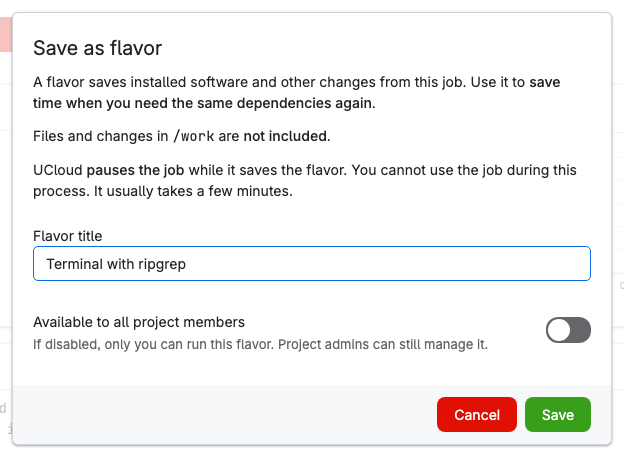
UCloud pauses the job while it saves the flavor. The job cannot be used during this process, which usually takes a few minutes. If the job is stopped during the save, the stop operation waits for the save to finish. The background task reports when saving is complete.
Run Custom-Flavor Jobs
Open the original application as described in Submit a Job. In Job information, open the Flavor selector and select the custom flavor under Your flavors.
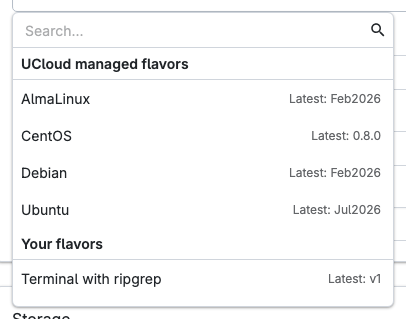
Configure and submit the job as usual.

The new job uses the software saved in the flavor. Any required folders must still be attached under Storage. The flavor list depends on the active project. Select the project in which the flavor was saved to use it.
Save a New Version
Further changes can be saved as a new version of an existing flavor:
Start a job using the application or an existing custom flavor.
Make the required changes in the running job.
Select Save as flavor on the job's progress view.
Under Push to existing flavor, select the flavor to update. The list shows compatible flavors for the same application and provider.
Select Push new version, then Confirm push.
Existing versions remain available. The flavor's title and project access do not change when a new version is saved. If the job uses a different version of the base application than the flavor, the confirmation shows that the flavor's base version will change.
For example, suppose you created a flavor from version 1 of an app. If you start a job with version 2 of the same app and save it as a new version of the existing flavor, the confirmation shows that the base version will change to version 2.
Important
A flavor does not inherit updates made to its underlying base application. To use a newer base version, launch a job using that version, install the necessary software, and save the result as a new version of the flavor.
Manage Flavors
Open the app you created the flavor from and select Manage your flavors, next to the Flavor selector. The list displays each flavor's title and base version.
The creator and project administrators can select a flavor to:
Rename it.
Publish to project or Unpublish from project.
Delete the flavor.
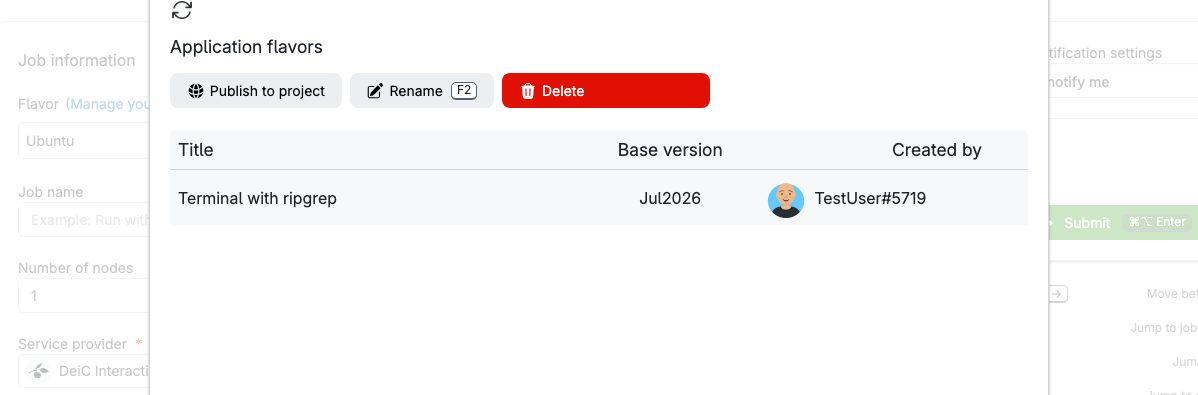
Double-click a flavor in the list to see its versions. The list shows the flavor version, the base flavor and the base version:
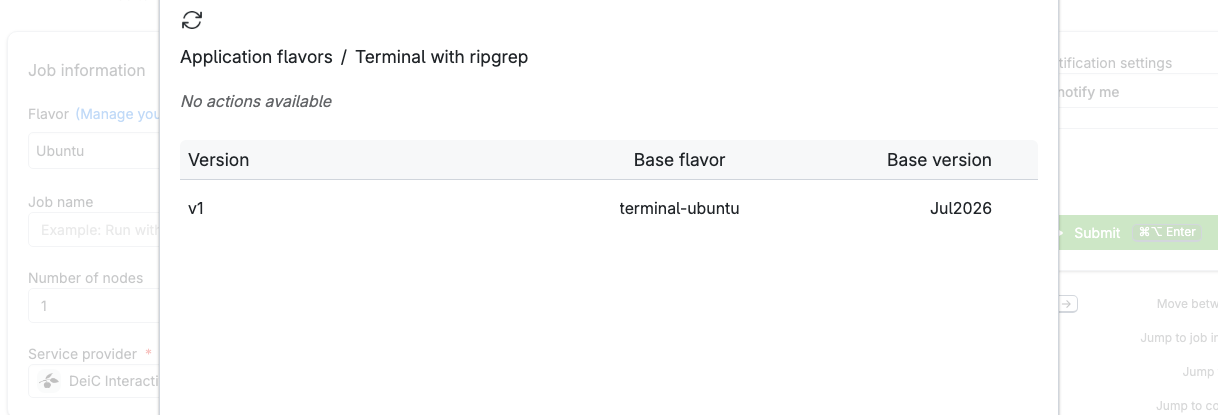
Select a version and choose Delete version to remove that version. Hold the delete button to confirm the deletion.
Delete a flavor
Deleting a flavor removes access to the flavor and its versions, so it can no longer be selected for new jobs.
Flavor Registry
When a custom flavor is saved, UCloud stores the container as an image in the default repository for the project workspace in the provider's container registry. Each flavor version has an image tag. The images use the workspace's storage allocation.
When UCloud creates a project's default repository, it grants pull and push access to all project members. Users with pull access to a project can retrieve the image from the registry, even when the corresponding flavor has not been published to the project and is absent from the job submission page's app flavor list.
Deleting an image tag can prevent jobs from starting with the corresponding flavor version.
For more information about image storage, access, and Docker, see Container Registry.
Contents