Container Registry
A container registry is a place to store and share container images. An image packages an application and what it needs to run. UCloud's container registry stores images in a personal or project workspace and controls who can pull and push them. Docker or another compatible client can work with the images.
This guide describes how to create a repository, push an image with Docker, and browse its tags. Repository names and provider details can differ from the examples.
As a supplement to this documentation, the tutorial videos demonstrate how to create a repository, push and pull an image, and browse images and tags.
Availability
Provider |
Container registry available |
|---|---|
|
Yes |
|
Yes |


Note
Container repositories are available only on providers that support them. When the feature is enabled, Container registry appears under Registries in the Files menu.
Create a Repository
In a project, only project administrators can create a container repository.
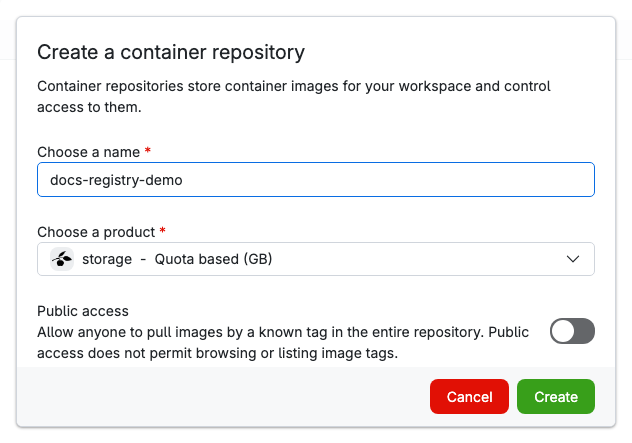
Open Files, select Registries > Container registry, and then select Create container repository.
Enter a name that uses lowercase letters, digits, and single hyphens. It can be at most 63 characters long and must be unique at the provider. Choose the storage product that provides the registry. If only one product is available, it is selected automatically. In a project, Pull or Push access can also be granted to project groups. If public access is available, it can be enabled in the same dialog. See Public Access. When the form is ready, select .
Note
By default, only the creator and project administrators can use the repository.
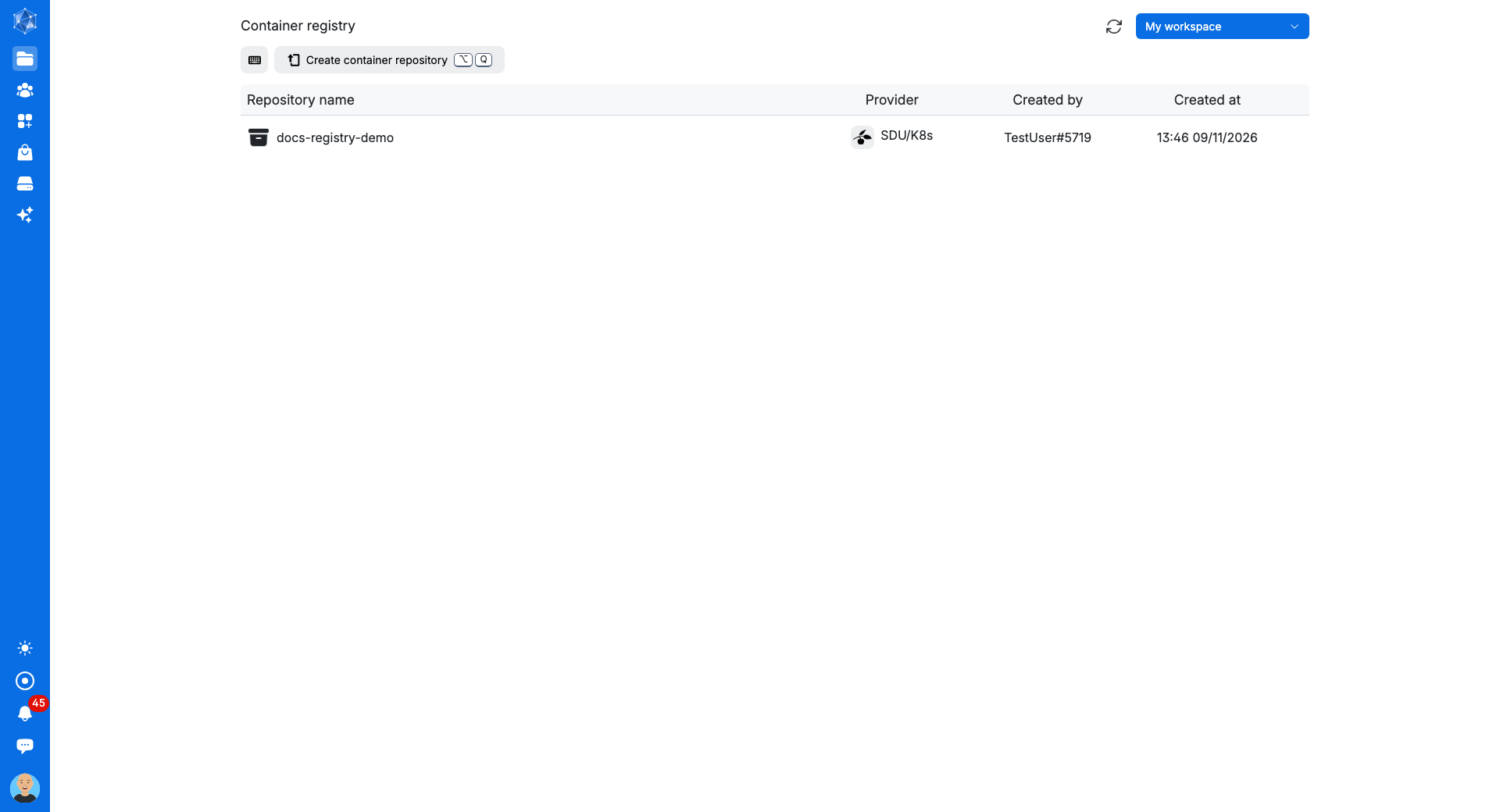
Double-click the repository to see its images.
Important
The workspace or project needs a storage allocation that supports container repositories.
Push and Pull Images
Double-click the repository and select Configure Docker.
The dialog shows the registry server, the username ucloud, and example
commands for using the registry.
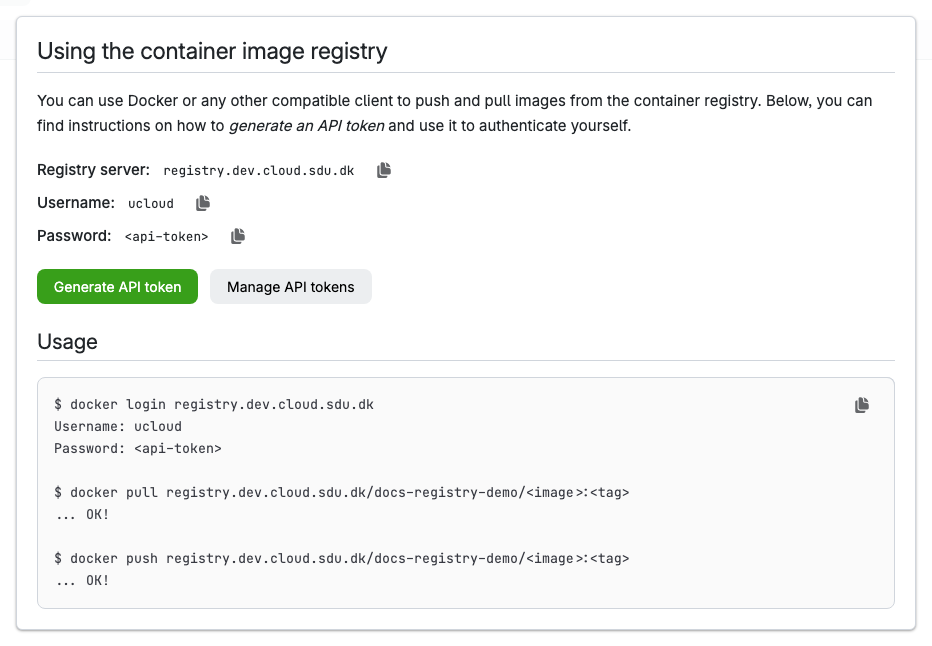
Select and copy the token before closing the dialog. The token is displayed only once and expires after 90 days. In a local terminal, use the registry server shown in the dialog and enter the token as the password when prompted:
$ docker login <registry-server> -u ucloud
Password: <api-token>
Pull a small image from Docker Hub, tag it for the repository, and push it. In
this example, the image is named hello and its tag is v1:
$ docker pull hello-world
$ docker tag hello-world <registry-server>/<repository>/hello:v1
$ docker push <registry-server>/<repository>/hello:v1
As a test, remove the local registry tag and pull the image back. Removing the local tag does not delete the image from the registry. Docker may reuse layers already on the local machine:
$ docker rmi <registry-server>/<repository>/hello:v1
$ docker pull <registry-server>/<repository>/hello:v1
Important
The token can pull and push images in the provider's registry, subject to the permissions of the repository. Store the token securely and do not commit it to version control. Tokens can be reviewed and revoked under Resources > API tokens.
Browse Images and Tags
Double-click a repository to see its images. The Tags column shows the number of tags for each image.
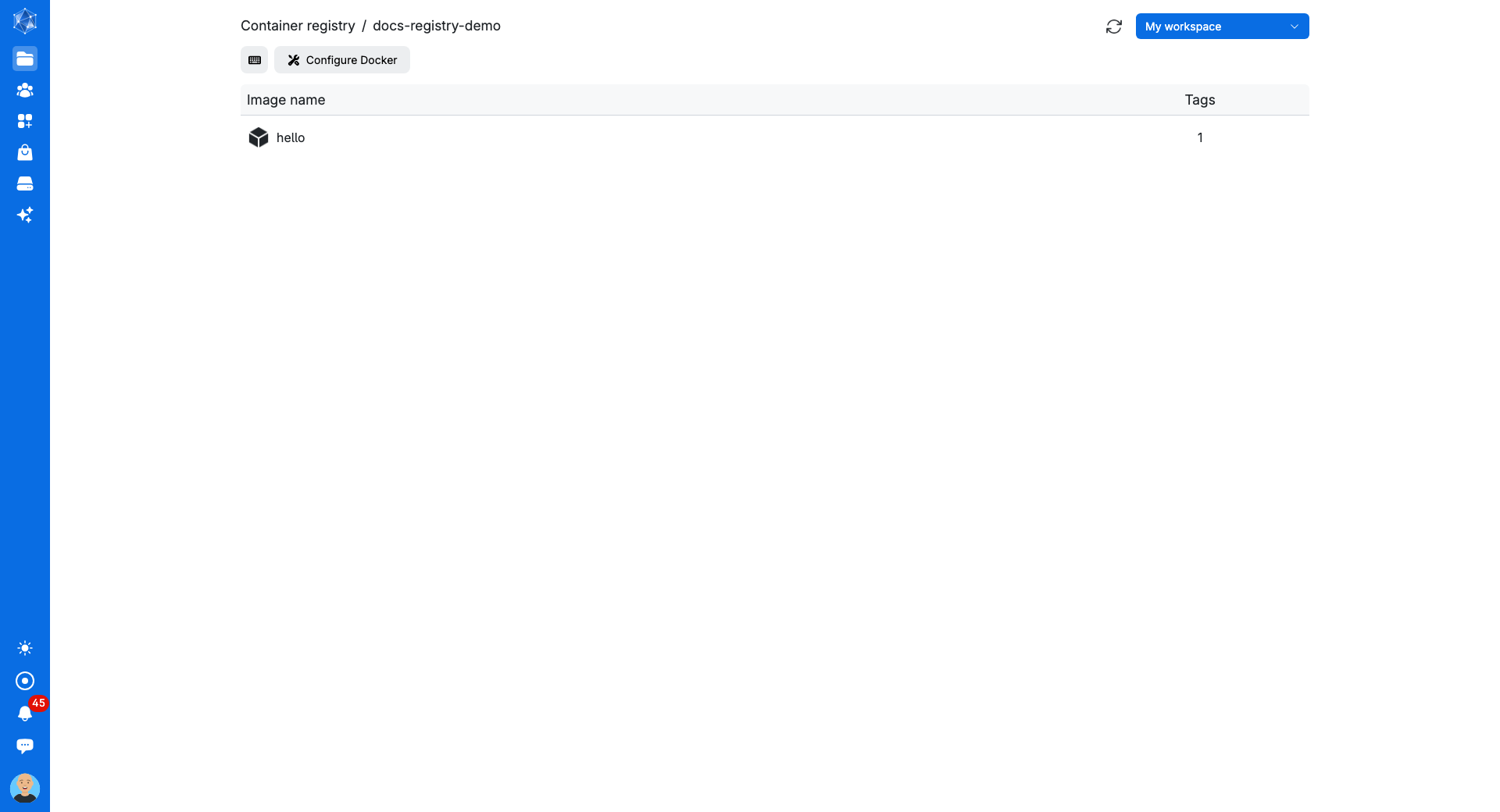
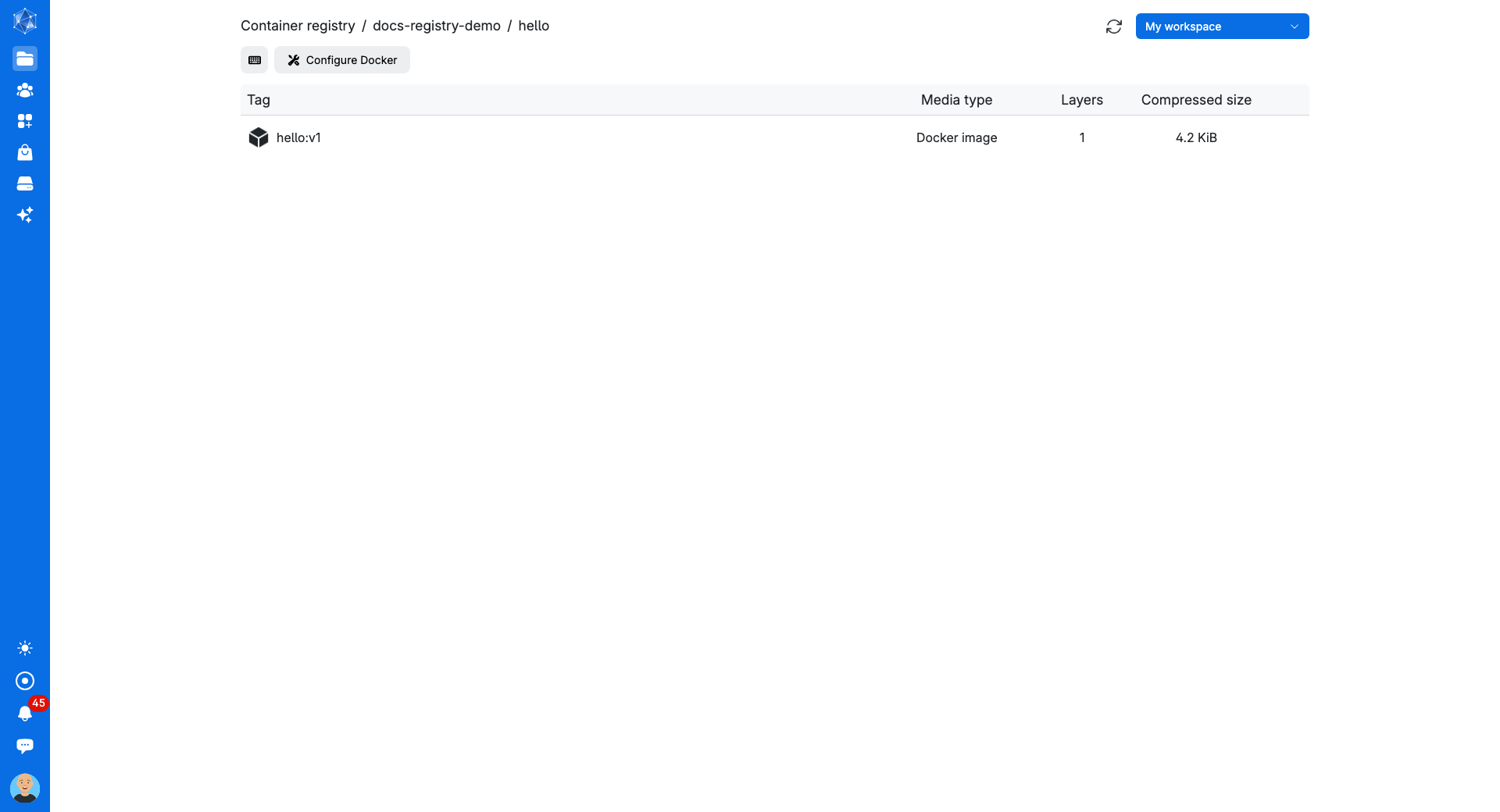
Double-click an image to see its tags. Each tag shows the media type, layer count, and compressed size.
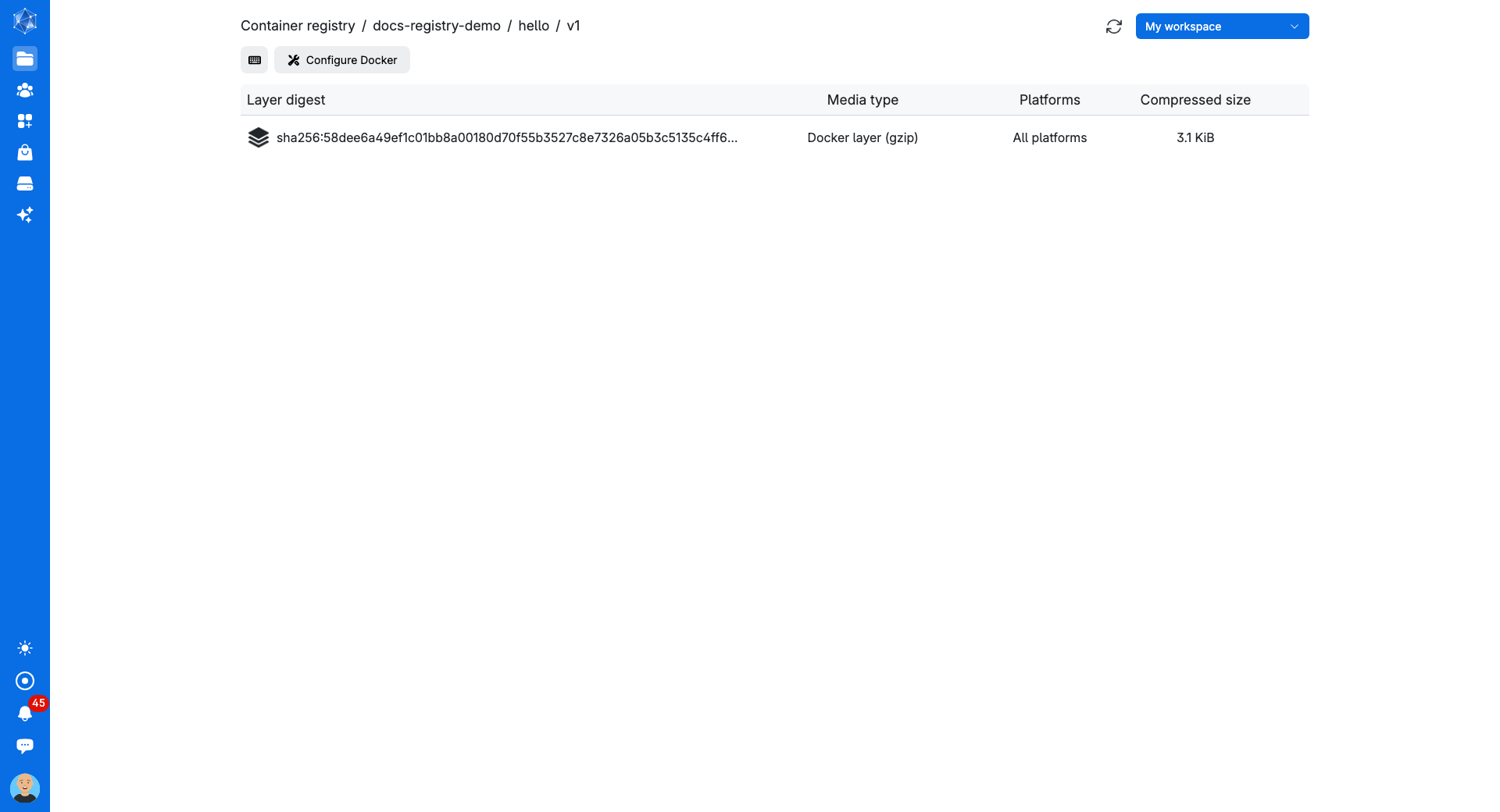
Double-click a tag to see its layers, platforms, and compressed sizes.
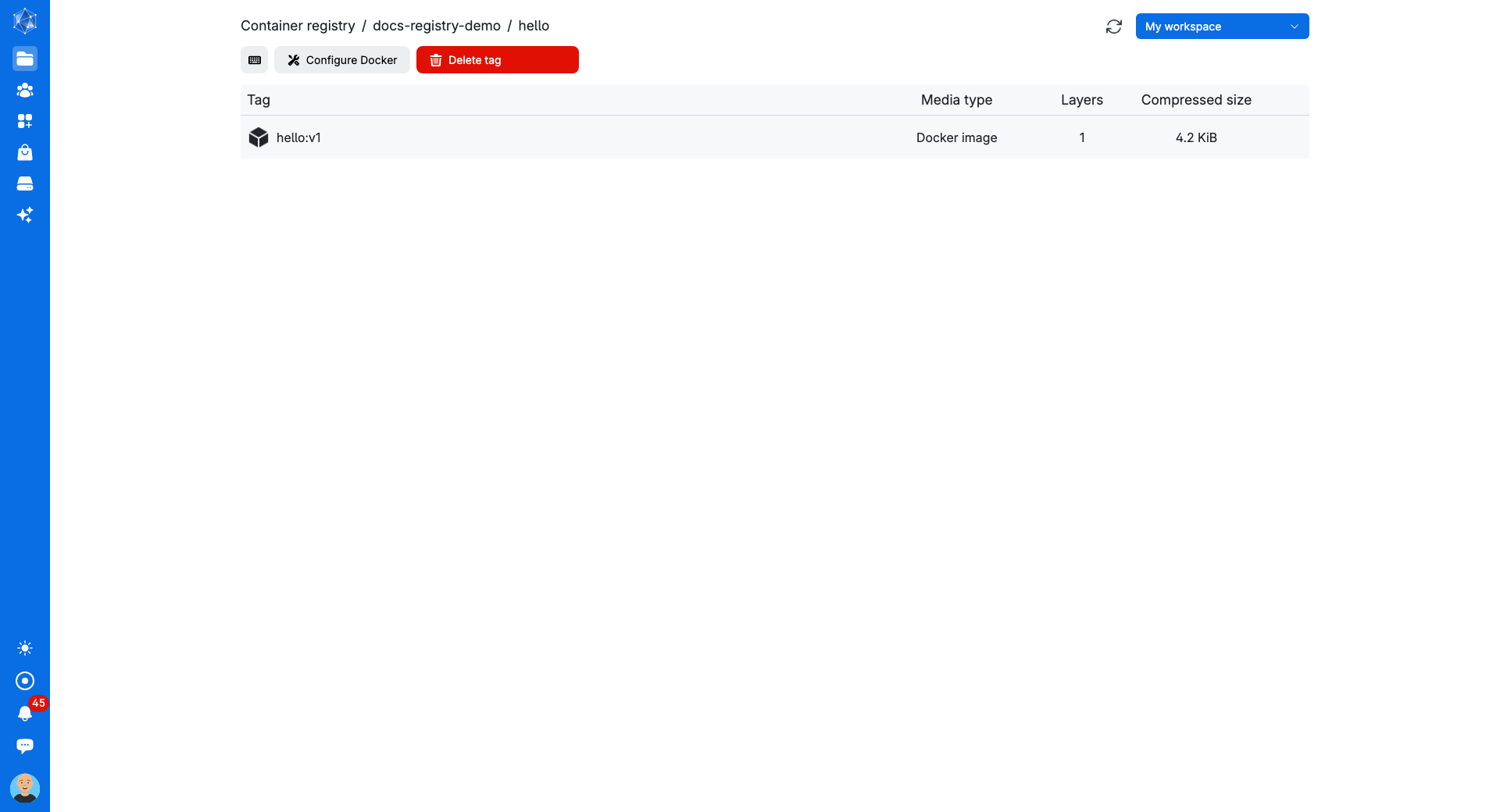
To remove a tag that is no longer needed, return to the image, select the tag, and choose Delete tag. Hold the button to confirm. Shared layers and other tags are not deleted.
Accounting
Container images use storage from the product selected when the repository was created. Their usage counts against the storage allocation for the personal or project workspace, alongside other storage use. The registry accounts for image content and metadata referenced by tags.
If images or tags share a layer in the same project (including the personal project My workspace) and provider, that layer is counted only once. Deleting a tag can reduce usage when its content is no longer referenced by another tag. Reported usage may take a short time to update. A push is rejected if the image would exceed the available storage allocation.
Manage Access
In a project, select a repository and choose Permissions. Project administrators can grant Pull or Push access to project groups. In My workspace, the repository is private to the workspace owner. Public access is described in Public Access.
Public Access
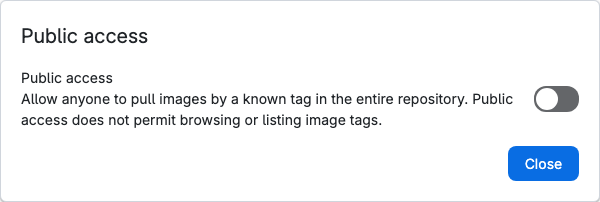
Public access allows anyone to pull an image from the repository with a known image reference. It does not allow browsing, tag listing, or push access.
To change public access, select the repository and choose Permissions. In a project, only project administrators can change it. Turn on Public access. If the control is disabled, public access is not available for the workspace.
Important
A public repository allows anonymous pull of every image with a known tag. Do not enable public access for images that must stay private.
No login is required to pull an image from a public repository:
$ docker pull <registry-server>/<repository>/<image>:<tag>
Public access applies to all images and tags in the repository. The registry does not list the tags of a public repository to anonymous users. Turn off Public access to stop anonymous pulls.
Delete a Repository
Select the repository and choose Delete. Hold the button to confirm.
Danger
Deleting a repository also deletes its images and tags. This action cannot be undone.
Contents