Deploying an Application
The dashboard can create Kubernetes resources from YAML templates. The cluster
must be running and healthy, and the examples use the default namespace. In
this example, nginx is deployed with a
Deployment,
given a stable address with a
Service,
and exposed through an
Ingress.
As a supplement to this documentation, the tutorial video demonstrates how to deploy an application.
Create a Deployment
A Deployment tells Kubernetes which container image to run and how many copies to keep running.
Open Workloads > Deployments from the dashboard left menu and select .
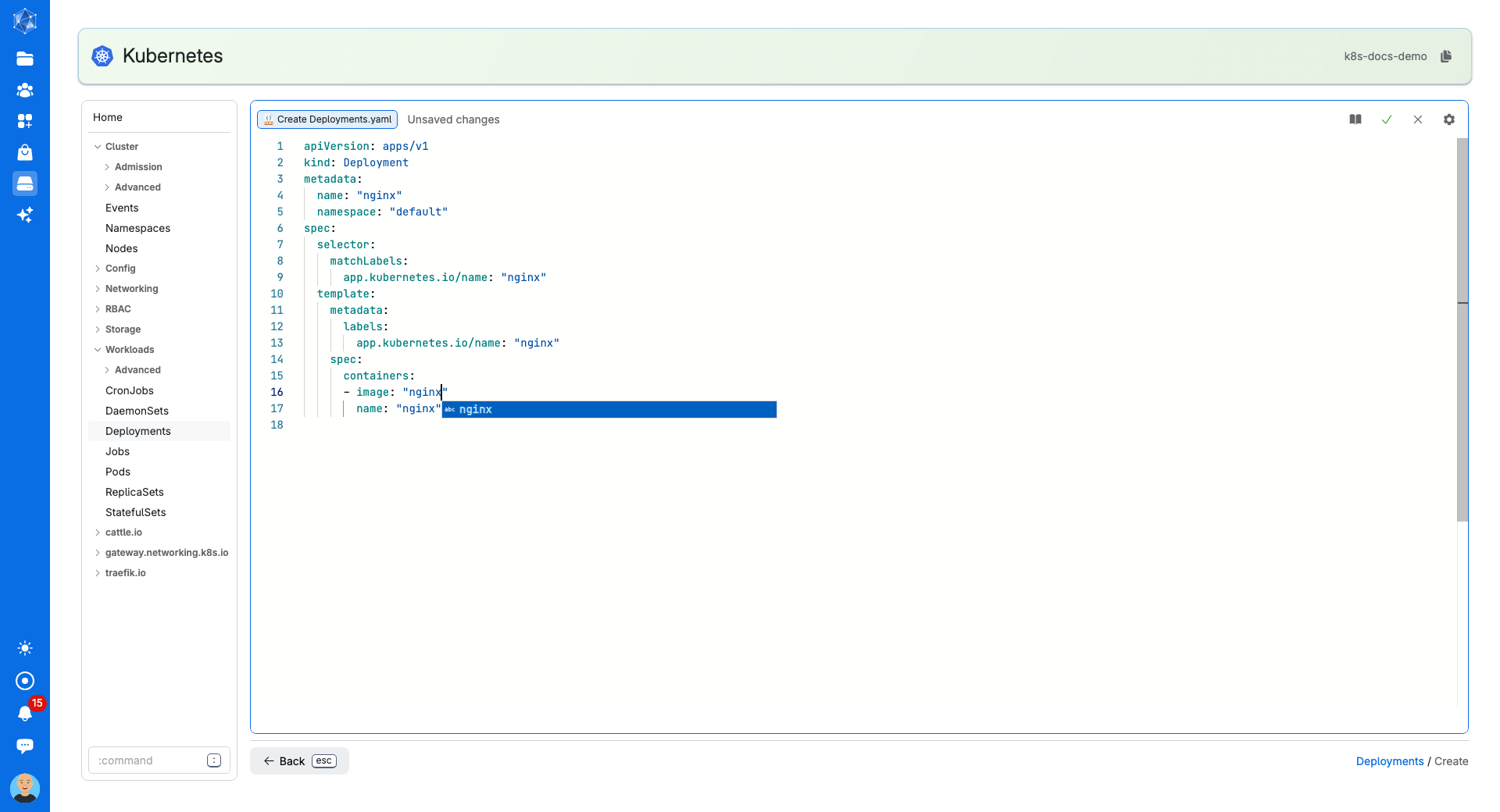
The editor opens a template. Set
metadata.nametonginx,metadata.namespacetodefault, and the containerimagetonginx.Select the save icon (✓) at the top right of the editor.
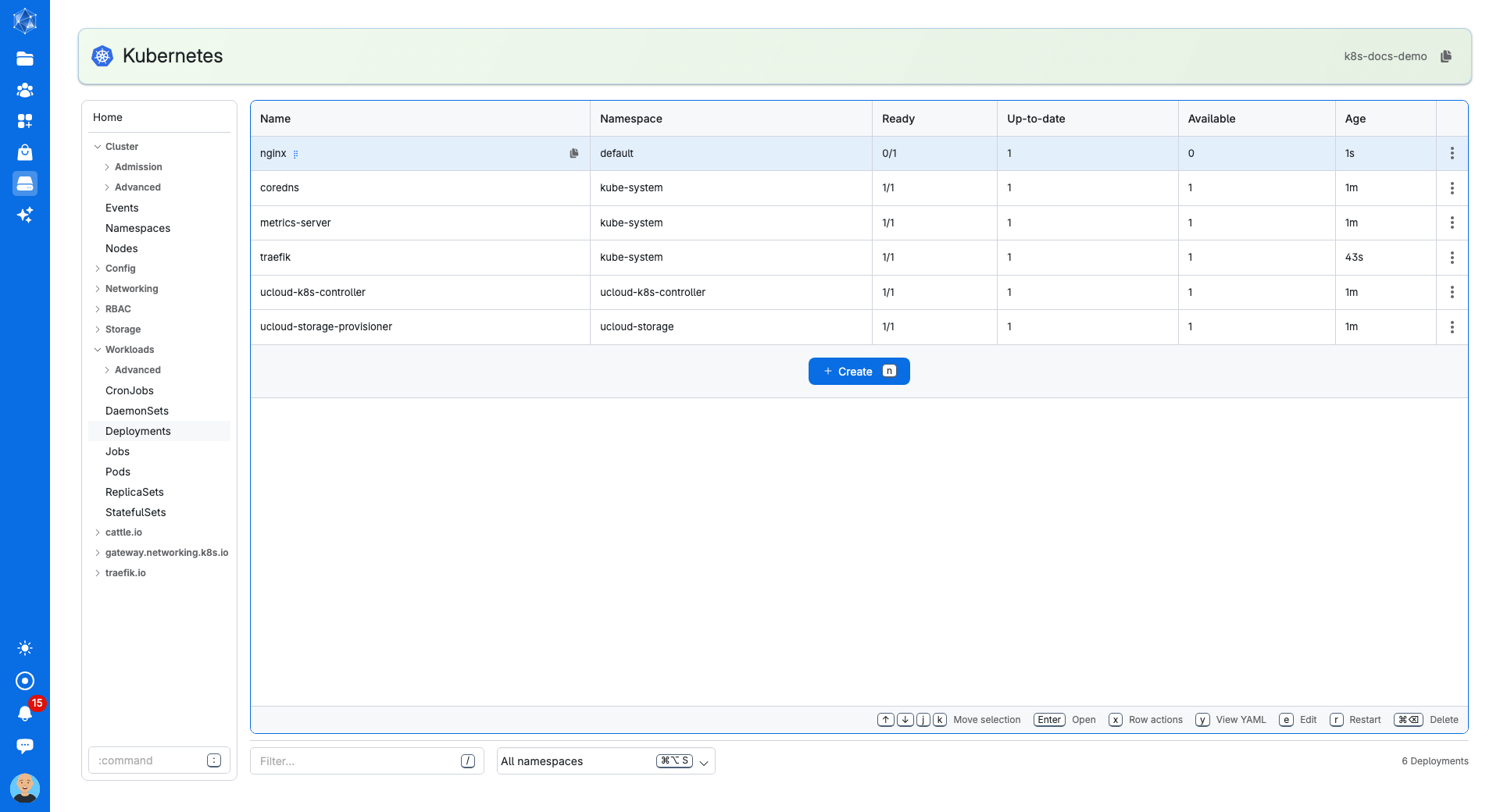
Kubernetes pulls the image and starts a pod. The Deployment appears in the list when it is created. The API reference panel beside the editor lists the fields for the selected resource type.
Create a Service
A pod's address can change when the pod is replaced. To solve this, a Service gives the workload a stable address inside the cluster.
Open Networking > Services and select .
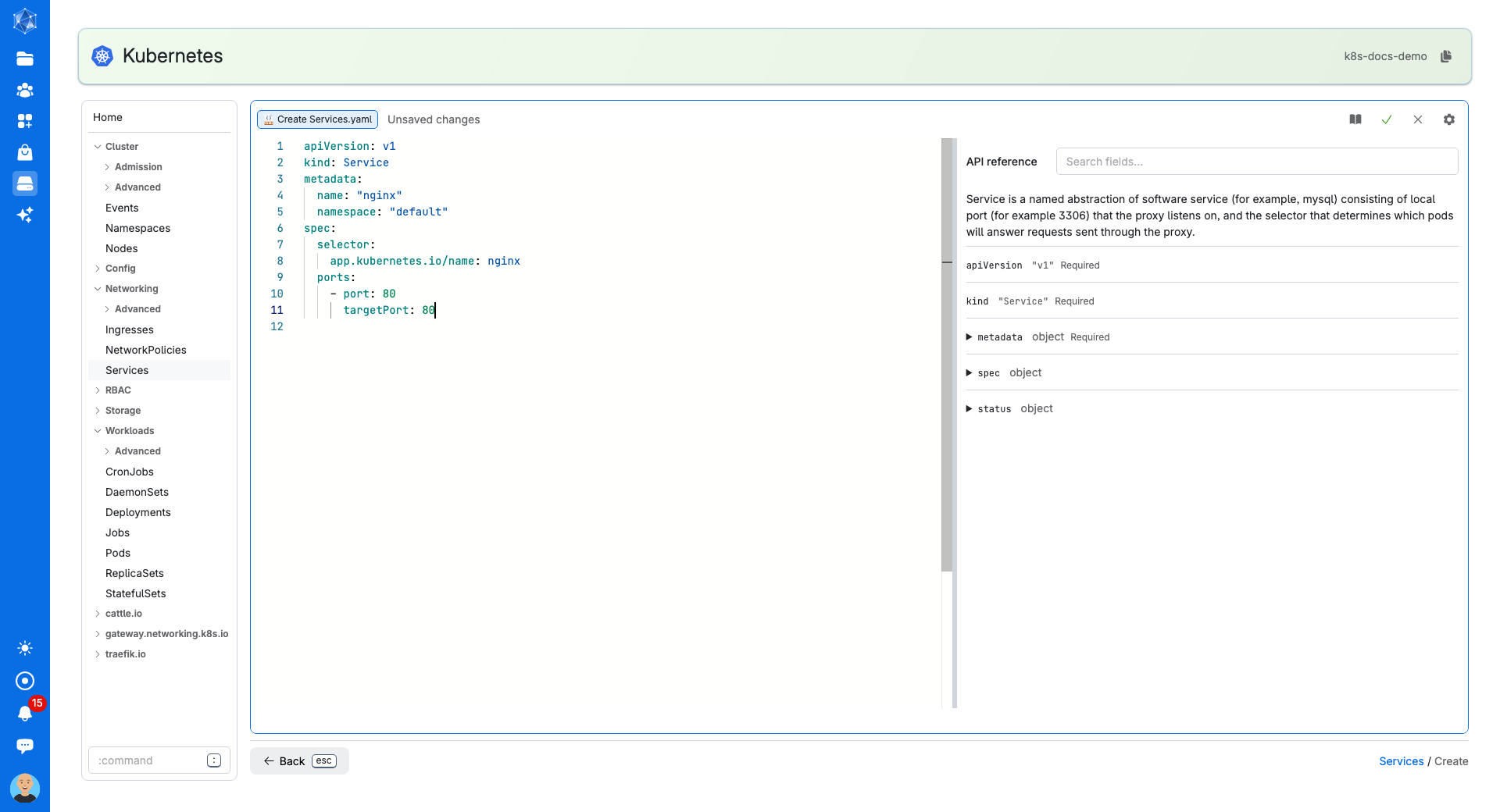
Set the name to
nginxand the namespace todefault.Set the selector to
app.kubernetes.io/name: nginx. This matches the label that the Deployment template adds to the pod.Set
portto80andtargetPortto80.Select the save icon (✓) at the top right of the editor.
Create an Ingress
An Ingress routes requests from a public hostname to the Service.
Open Networking > Ingresses and select .
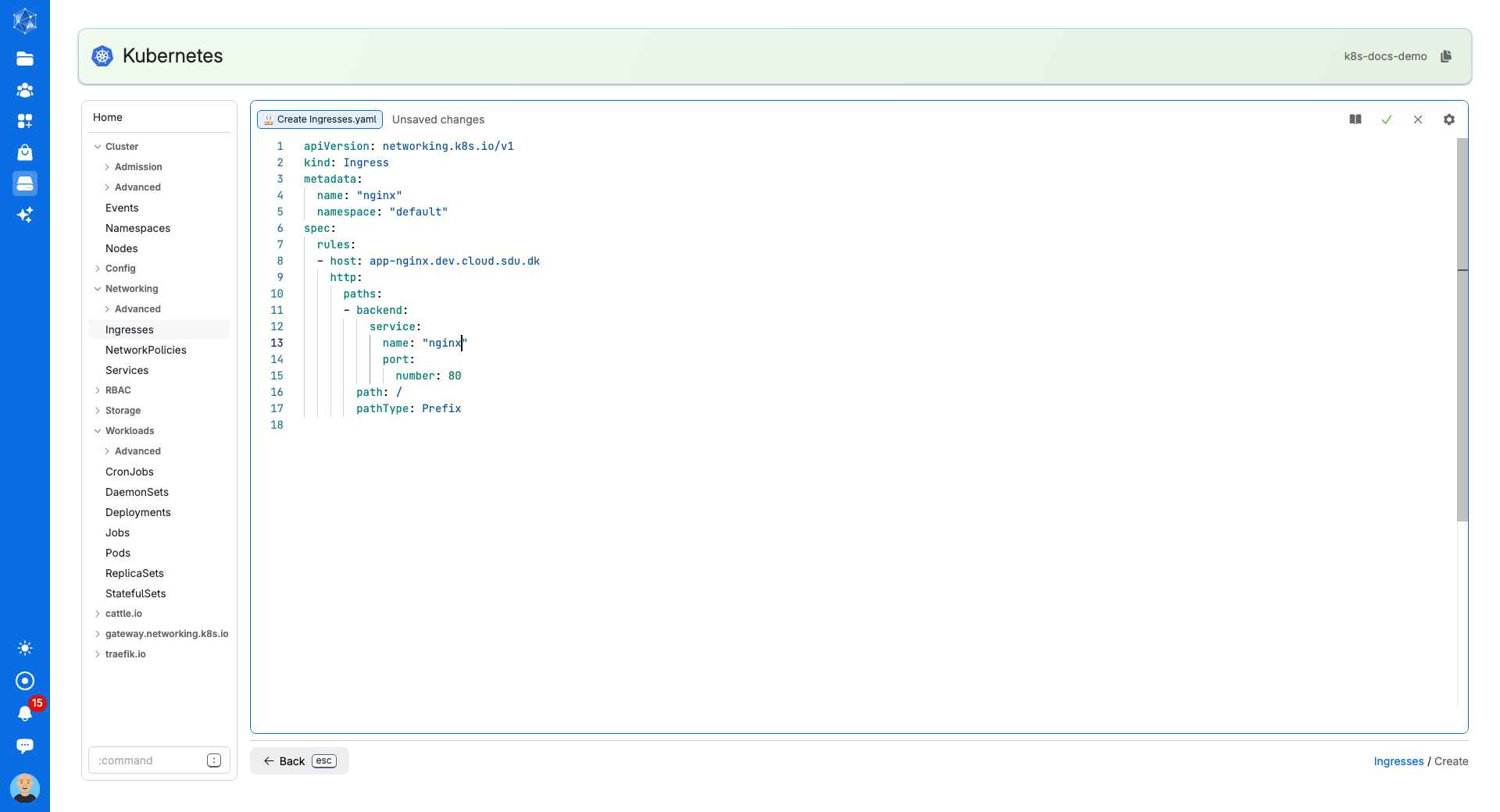
Set the name to
nginxand the namespace todefault.Set the host to a name that matches the public link pattern of the provider. The editor shows the pattern. Replace the placeholder with
nginx.Set the backend service to
nginxand the port to80.Select the save icon (✓) at the top right of the editor.
The cluster controller creates a public link for the host. It can take a moment for the link to become available. Select a unique link. Kubernetes will not reject a link if it is not unique, but the cluster's controller will contain the relevant error messages.
Open the Application
Right-click the Ingress and choose Open service, then confirm. The request goes through the public link to the Ingress, the Service, and the nginx pod. The nginx welcome page opens in a new tab.
Clean Up
When the example is no longer needed, delete the Ingress, the Service, and the Deployment. Deleting the Deployment stops the pod. Deleting the Service and Ingress removes the internal address and the public link.
Contents