Using the Dashboard
The cluster dashboard is the web interface of one cluster. Open Compute > Stacks from the navigation menu and select the cluster. The dashboard shows the state of the cluster, its Kubernetes resources, and the operations that change it.
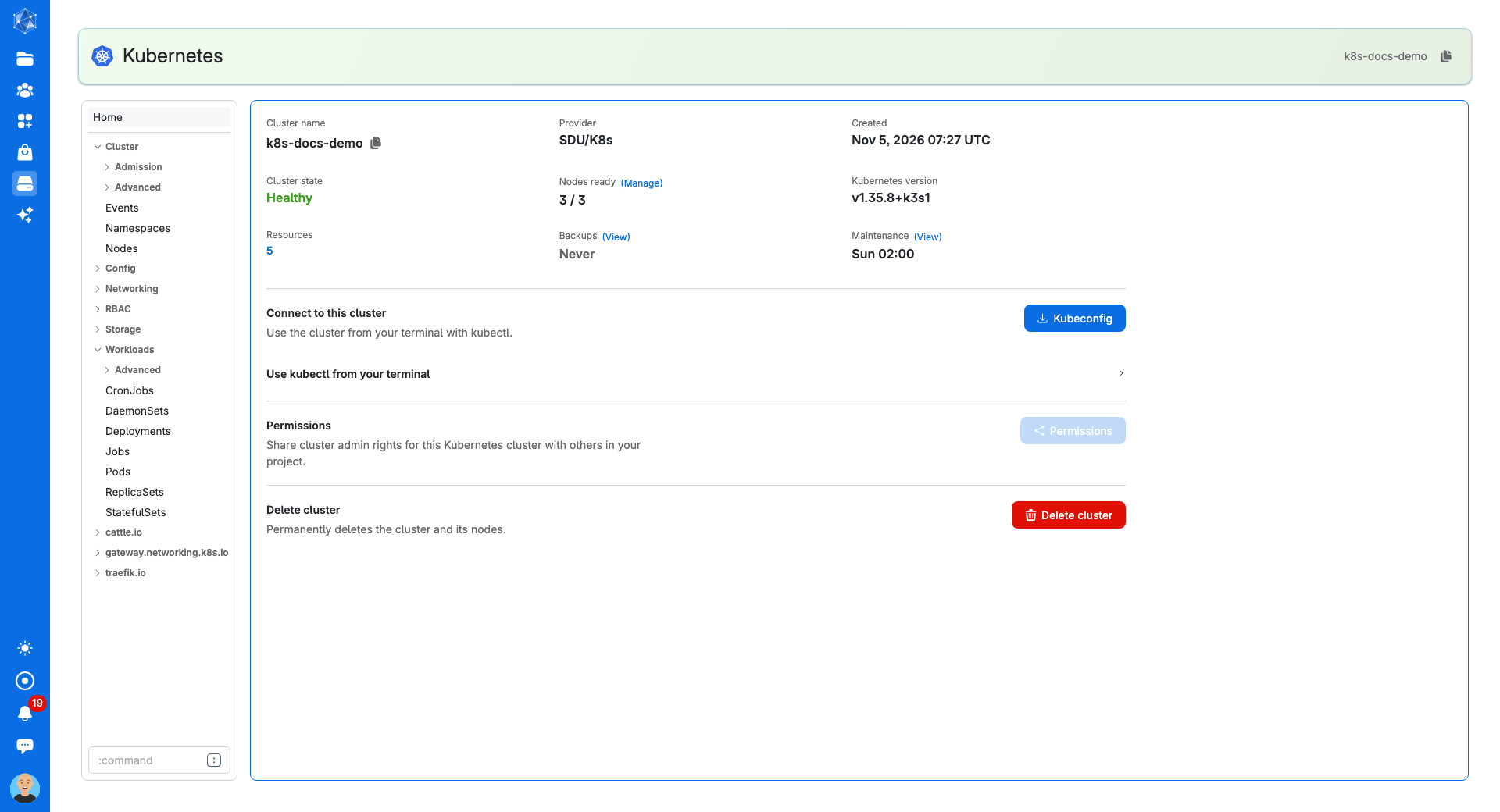
Home
The Home page shows the cluster and its state:
Item |
Shows |
|---|---|
Cluster name |
The name of the cluster. Select the copy button to copy it. |
Provider |
The provider that runs the cluster. |
Created |
When the cluster was created. |
Cluster state |
|
Nodes ready |
The number of ready nodes against the total. |
Kubernetes version |
The control plane version. A version past its support date is marked. |
Resources |
A link to the resources that the stack provisions. |
Backups |
The state of the last backup. |
Maintenance |
The state of the automatic policy ( |
Cleanup pending |
The resources that the application is removing after a failed node creation or scale-out. The card appears only while the cleanup runs. |
Connect to This Cluster
Under Connect to this cluster, select Kubeconfig to download the kubeconfig.
Important
The kubeconfig contains a cluster-admin token. Store it securely and do not commit it to version control.
Permissions
Select Permissions to share cluster admin access with project groups.
The creator and the project administrators keep access. The permissions apply to the whole cluster, not to one Kubernetes Namespace.
Delete the Cluster
Select Delete cluster to remove the cluster.
Danger
This deletes the machines, the state drive, the persistent volumes, and the backups. This action cannot be undone. Type the cluster ID to confirm. Copy any files that are needed before the cluster is deleted.
Kubernetes Resources
The left navigation groups the Kubernetes API by resource type: Cluster, Config, Networking, Storage, Workloads, and the custom resource groups of the applications in the cluster.
The resource table offers the actions that apply to the selected type:
view, edit, create, and delete YAML.
restart a workload.
open a shell in a container or on a node.
read container logs.
open the address of an Ingress.
add machines or worker pools.
cordon, drain, upgrade, or remove a node.
Nodes
Open Cluster > Nodes to see the control plane and worker nodes. The table shows the name, status, scheduling, maintenance, roles, Kubernetes version, and private IP of each node. Select Go to job to open the UCloud job and its logs, or open a shell on the node.
Contents