Networks
Networks connect jobs in a project through a dedicated address range. A network belongs to a project, including a personal project (My workspace). Only jobs that attach the network can use its addresses. Every job keeps its normal connection for SSH, public links, and internet access.
UCloud supports two network types: Ethernet and InfiniBand. Ethernet uses an isolated virtual network. InfiniBand gives container jobs access to a shared high-speed network for demanding workloads.
As a supplement to this documentation, the tutorial videos demonstrate how to create an Ethernet network, create an InfiniBand network, and attach a network to a job.
Note
Networks are available only on providers that support them. The examples in this section use the DeiC Interactive HPC (SDU/K8s) provider. Product names, address ranges, and available types can differ between projects.
Network Types
Type |
Interface |
Workloads |
Address range |
Typical use |
|---|---|---|---|---|
Ethernet |
|
Container jobs and virtual machines |
Automatic |
General traffic between jobs |
InfiniBand |
|
Container jobs |
Automatic |
Fast communication for HPC |
A job can attach several Ethernet networks. A job can attach at most one InfiniBand network. InfiniBand networks are not available for virtual machines.
Create a Network
Open Resources and select Networks. The page lists the networks in the active project. The list shows the name, type, address range, and subdomain of each network. For an Ethernet network, the subdomain is the DNS name. UCloud generates it from the network name and can add a suffix to keep it unique.
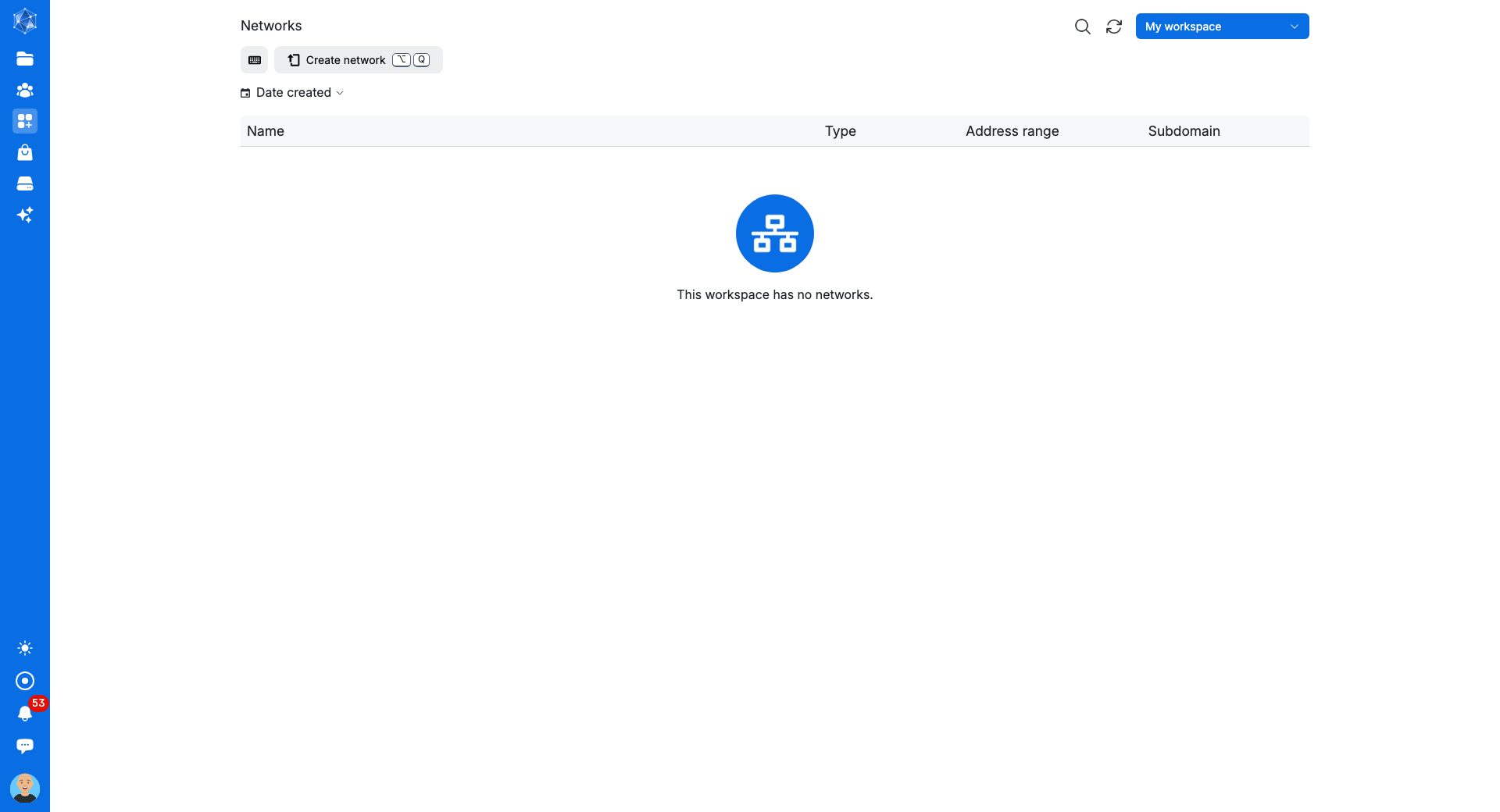
Select Create network to open the form.
Enter a Name. The name identifies the network in the project.
Select a product under Choose a product. The product sets the network type. A provider publishes one product for each type that it supports.
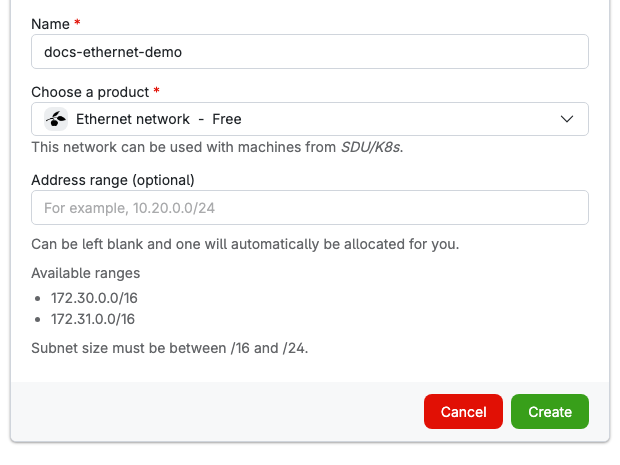
For an Ethernet network, optionally enter an Address range. If the field is left blank, UCloud assigns an address range automatically. Available ranges are listed below the corresponding field. The prefix must be between
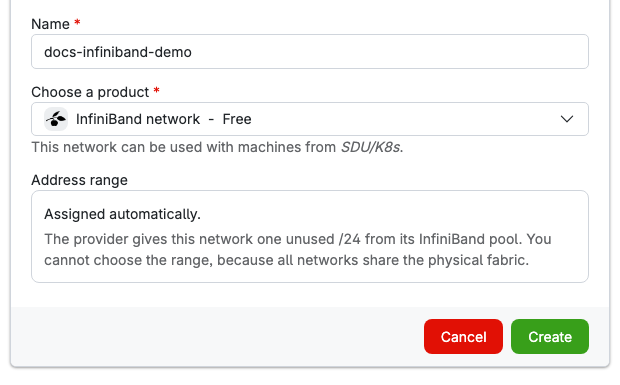
/16and/24. The range cannot change after the network is created.For an InfiniBand network, the address range is automatic. The provider assigns one unused
/24from its InfiniBand pool. The range cannot be changed, because all InfiniBand networks use the same physical network.In a project, select the project groups that can use the network. By default, only the creator and the project administrators can use it.
Select Create.
The form shows the available ranges for an Ethernet network:
An InfiniBand network receives its range automatically:
UCloud prepares the network after creation. The network shows Provisioning until the address range is ready. It then shows Ready.
Addresses and Reserved IPs
Each job receives one address in each network it attaches. The address is stable for the life of the job.
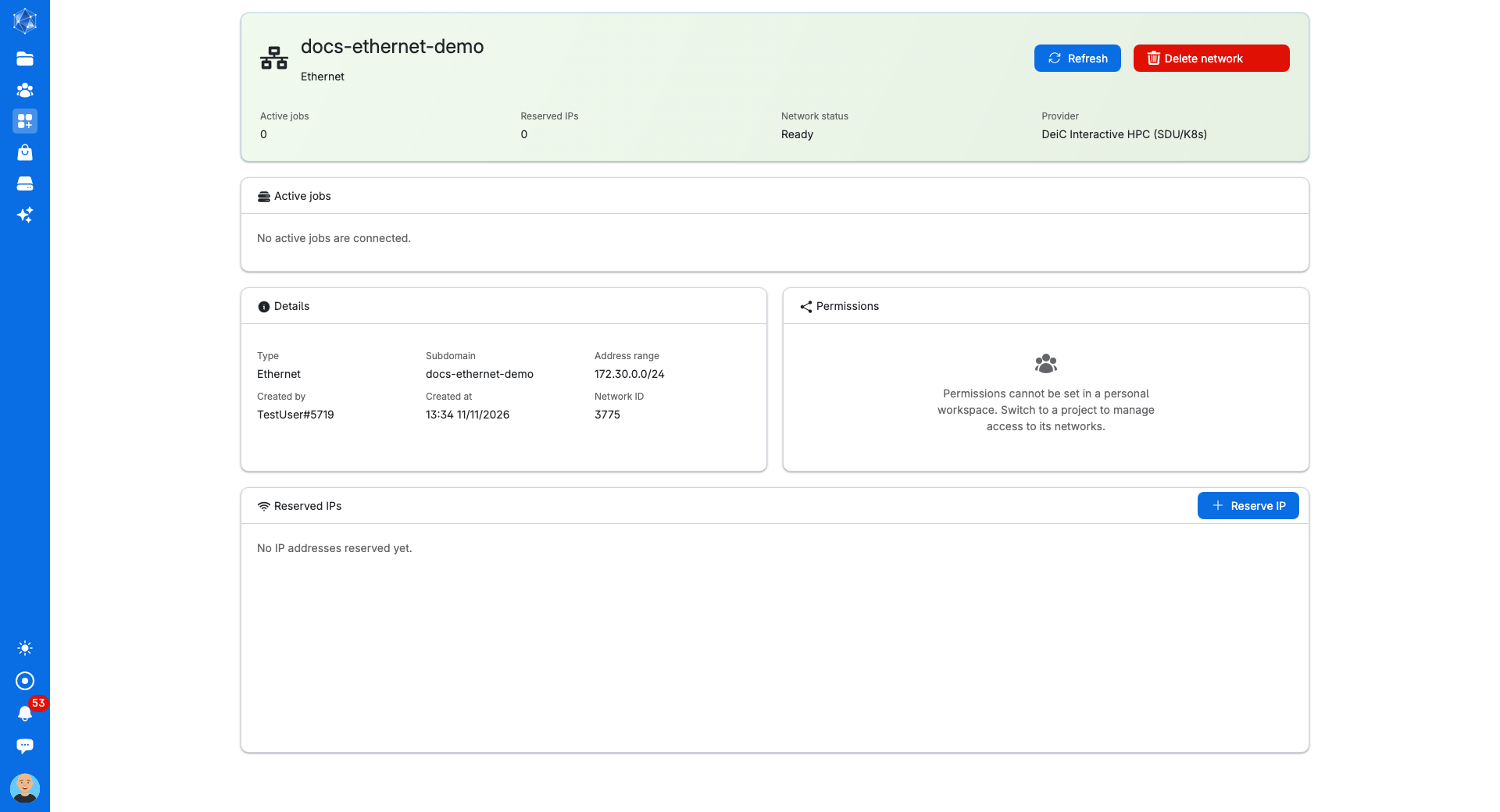
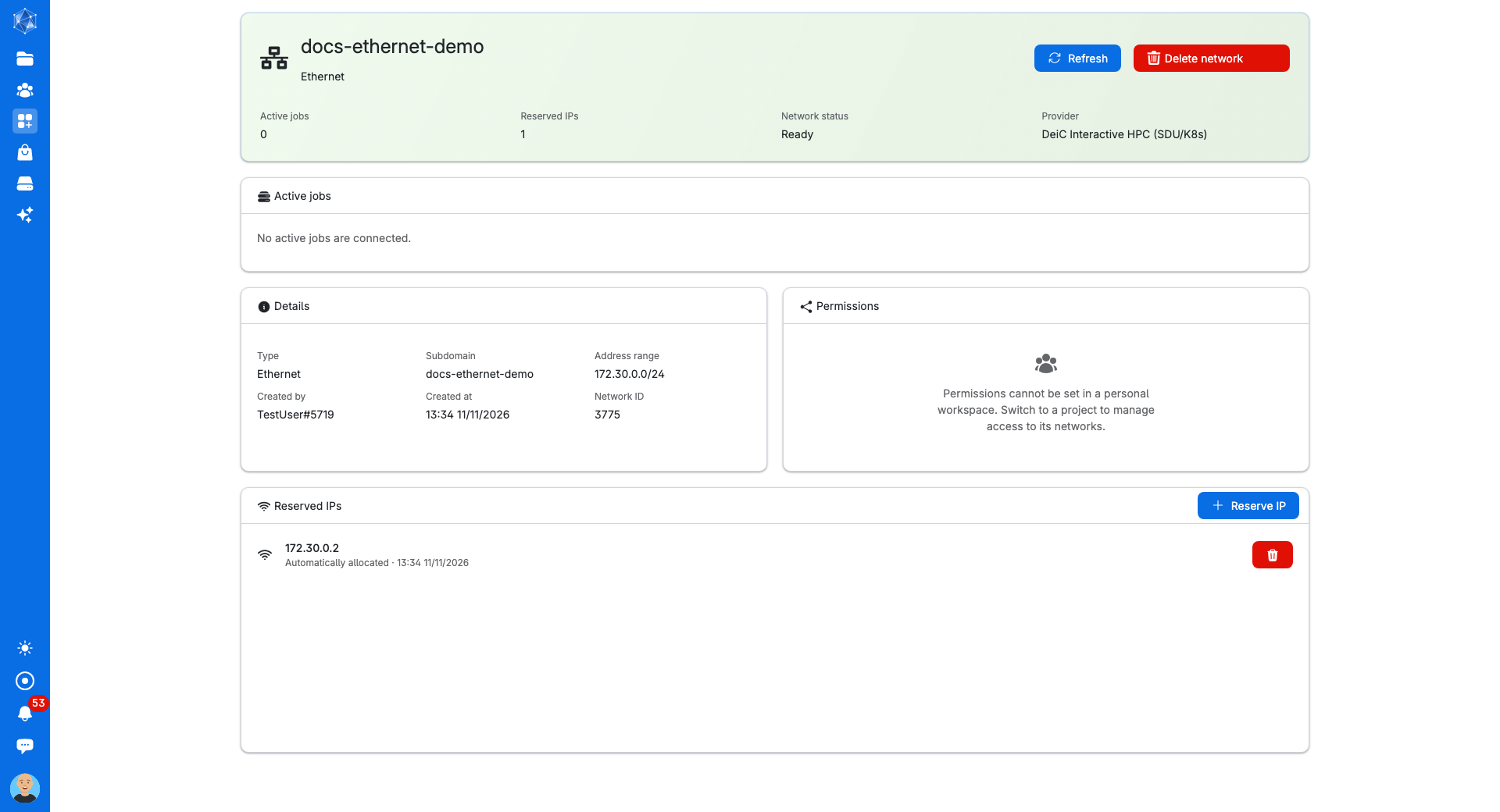
A reserved IP address persists across jobs. This is useful for a job that needs to connect using the same address every time. Select Resources and Networks from the left-side menu. Double-click on the network name. Press the Reserve IP button in the Reserved IPs panel. Enter an address inside the network range, or leave the field blank for automatic allocation. The page shows the address and whether it was requested or allocated automatically.
Note
A network with reserved addresses cannot be deleted. Delete the reservations first.
Attach a Network to a Job
Open the application and start a job. In Connectivity, find the Network field and select the network. If the network has reserved addresses, select one. Otherwise keep Automatic IP. Select Submit.
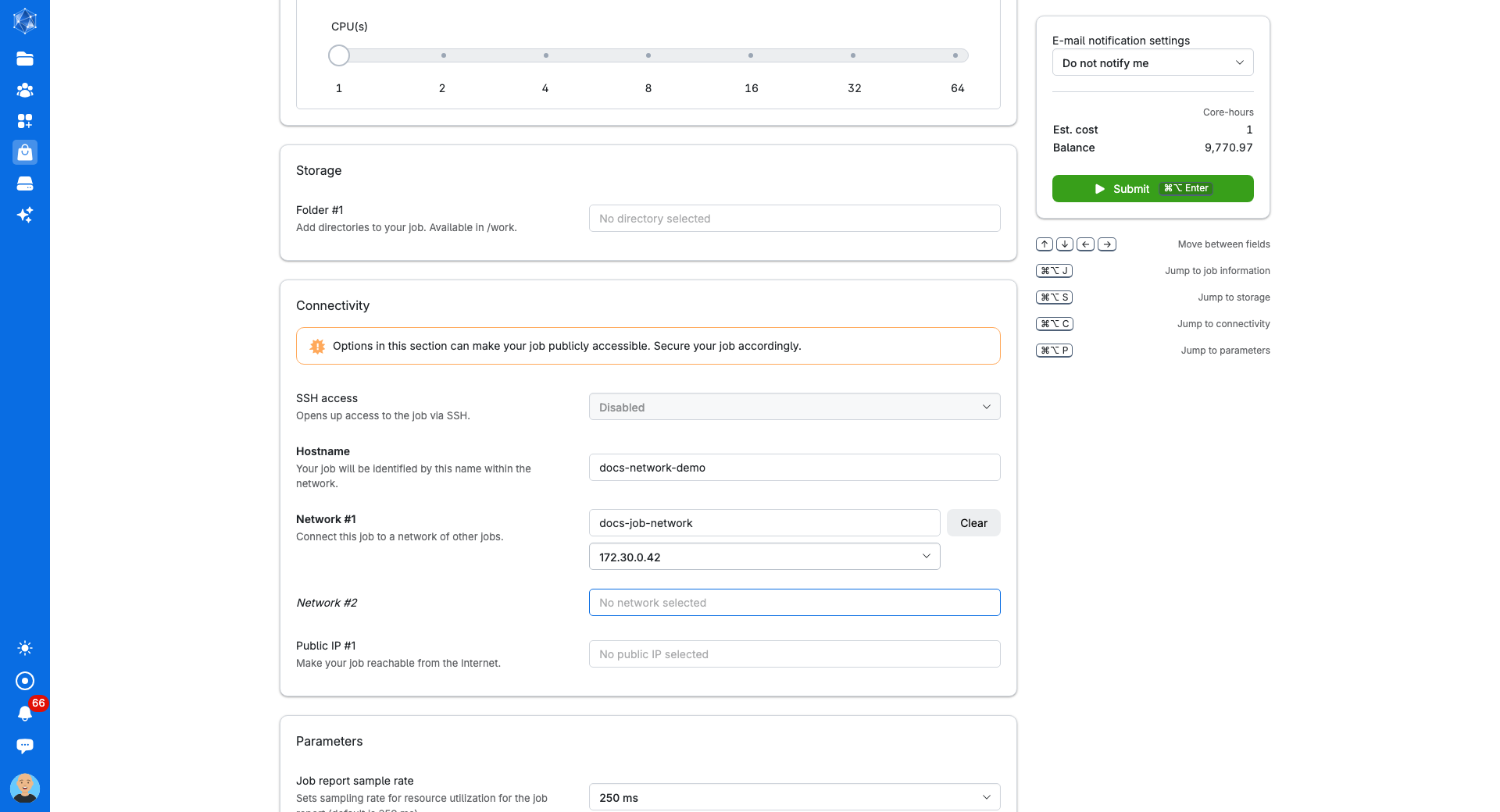
An Ethernet network adds a Hostname field. The job uses this name on the network. Other jobs on the network can use the hostname to reach the job.
To add another Ethernet network, select the next Network row. A job can attach only one InfiniBand network.
Note
A container job receives a separate environment variable for each attached network.
The variable name is UCLOUD_NET_<SUBDOMAIN>. The subdomain is uppercased and
hyphens become underscores. The value is the address of the job in that network.
A virtual machine can attach Ethernet networks.
Note
Suspend the virtual machine before changing its networks.
Important
InfiniBand networks are not available for virtual machines.
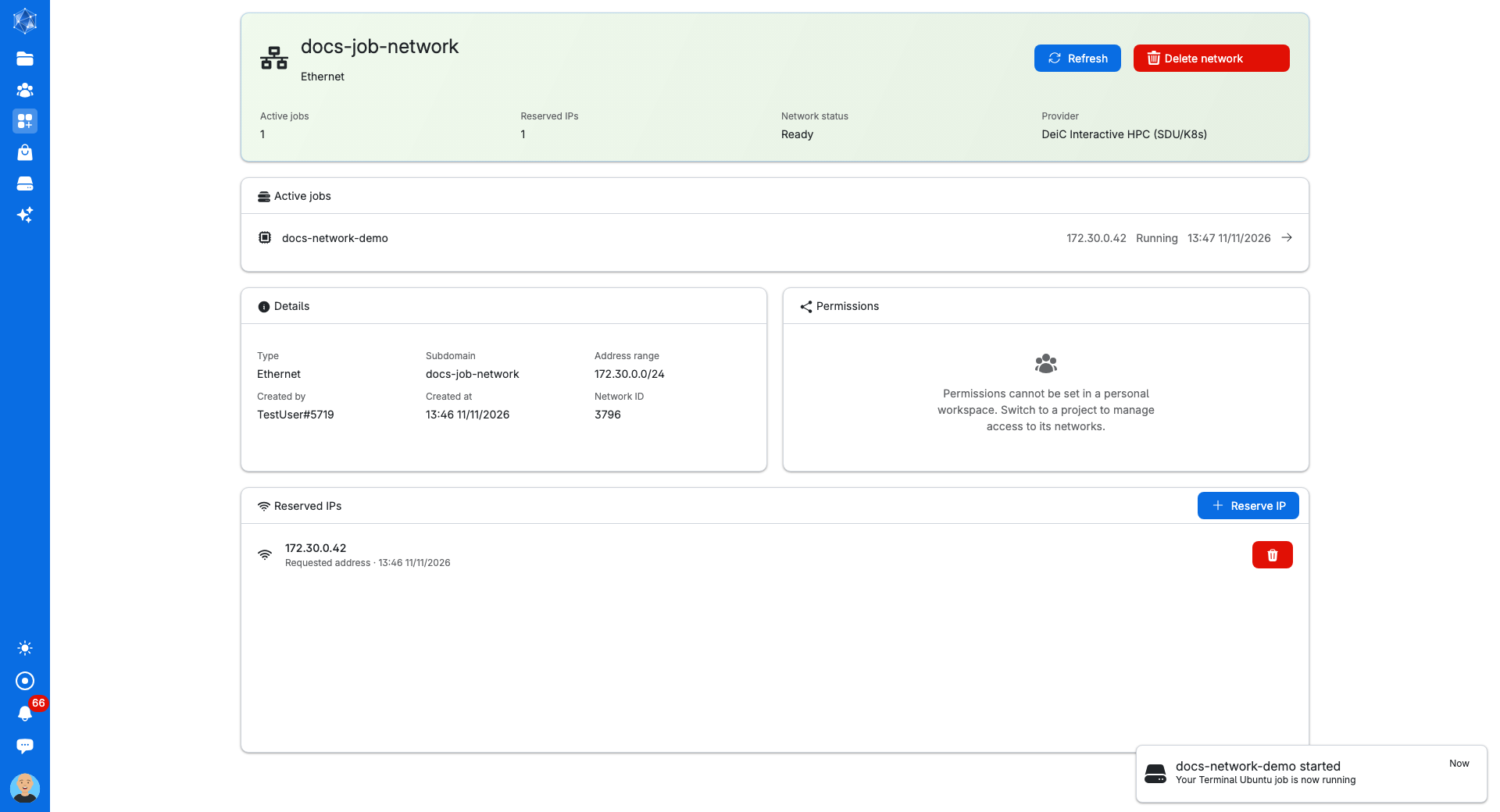
The network page shows the active jobs and the address of each job:
Use the Network
An Ethernet network gives its jobs a private address range for direct communication. Use it for jobs that work together as one application, such as a database and a web application. Jobs on the same network can communicate with each other, so use the network for jobs that require this.
An InfiniBand network provides a high-speed, low-latency path between container jobs. Each network has its own address range, and only jobs that attach the network can use it. This is ideal for tightly coupled work that must exchange data quickly, such as MPI jobs.
Jobs on the same network can reach each other. A network does not provide internet access, and jobs keep their normal internet access through their primary connection. Networks are separate from each other. If a job must work with services in more than one network, attach all the networks to that job. The job can then pass traffic between them.
Manage a Network
Double-click the network name to open its management page and view active jobs, details, permissions, and reserved IPs.
Active jobs shows the job name, the address, the state, and the start time. Click on the job name to access the corresponding job progress view.
Details shows the type, the address range, the creation time, and the network ID. For an InfiniBand network, it also shows the last time the network was used.
Permissions shows the project groups that can use the network. In a project, administrators can change the access.
Delete a network
Stop all jobs that use the network and delete its reserved addresses. Then select Delete network and hold the button to confirm.
A network cannot be deleted while it has active members or reserved addresses.
InfiniBand reclaim
The provider can reclaim an InfiniBand network when free space in the pool is low. The provider marks an idle network as Pending deletion. The network page shows the deletion time.
Note
Ethernet networks are not reclaimed automatically.
Contents