Virtual Machine
UCloud provides apps that start Virtual Machines (VMs) based on various Linux operating systems.
The complete list of VMs is reported here.
Start a Virtual Machine
Select the Virtual Machines category in the Apps catalogue to get started. By clicking on the app card, users will be redirected to the job submission page.
When starting the job, a Disk size must be specified to allocate the primary storage for the VM. For storage requirements exceeding 2000 GiB, additional folders can be mounted using the Select folder to use parameter.
In addition, it is possible to attach public links and public IP addresses and connect the machine to other jobs through the parameter Connect to other jobs.
Job Progress View
Once the application has started, the job progress view appears as follows:
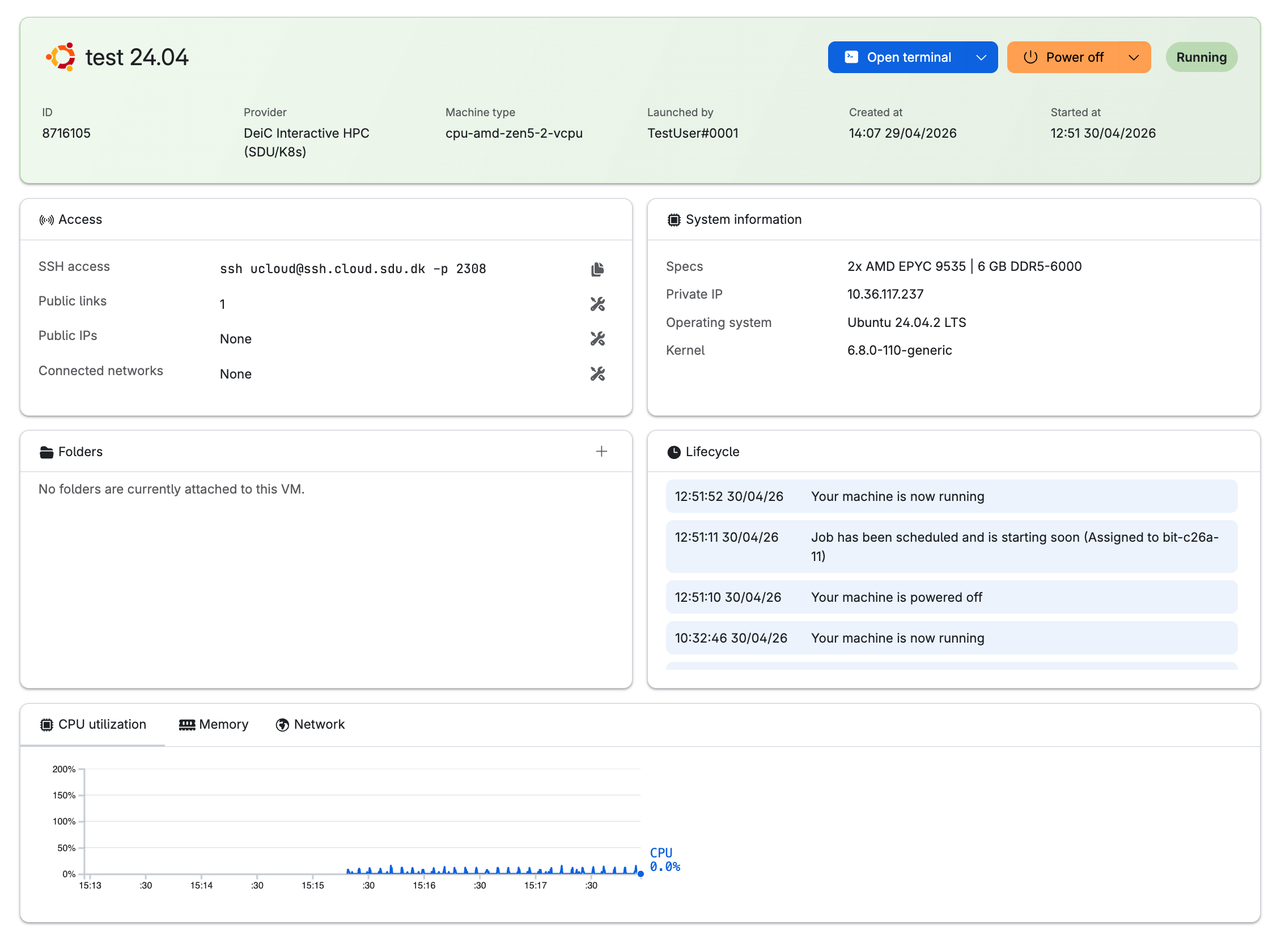
The page consists of several panels providing an overview of the VM resources and the tools necessary to manage them.
VM state controls
Click the orange button
at the right top of the page to pause the Virtual Machine. While paused, resource consumption ceases, and the machine state—including installed libraries and data—is preserved.
The button's dropdown menu
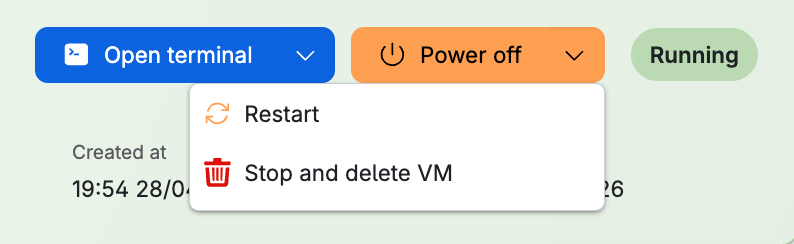
provides options to restart or stop and delete the virtual machine.
logs and config files are saved in the Jobs/VirtualMachines directory.
Important
Only data stored in the /work path is persistent. Stopping and deleting the machine will result in the permanent loss of all other files, including system-level installations and temporary data.
Access panel
This panel manages VM connectivity, including SSH access, networks, and public IPs or links. Clicking the icon on the right side of a category, opens a dialog box to add or remove these resources from the virtual machine.
After adding resources, click the icon to restart the system and apply the changes.
Important
Resources must be configured before they can be added.
Note
In order to add public links to a virtual machine, it is necessary to specify a port number.
Warning
The VM's IP address is dynamically assigned each time it is restarted. The configuration of services that were previously configured to run inside the VM may therefore need to be updated to reflect the new IP address.
Folders panel
This panel displays the UCloud folders mounted when starting the job.
Mounted folders are accessible within the VM in the /work directory.
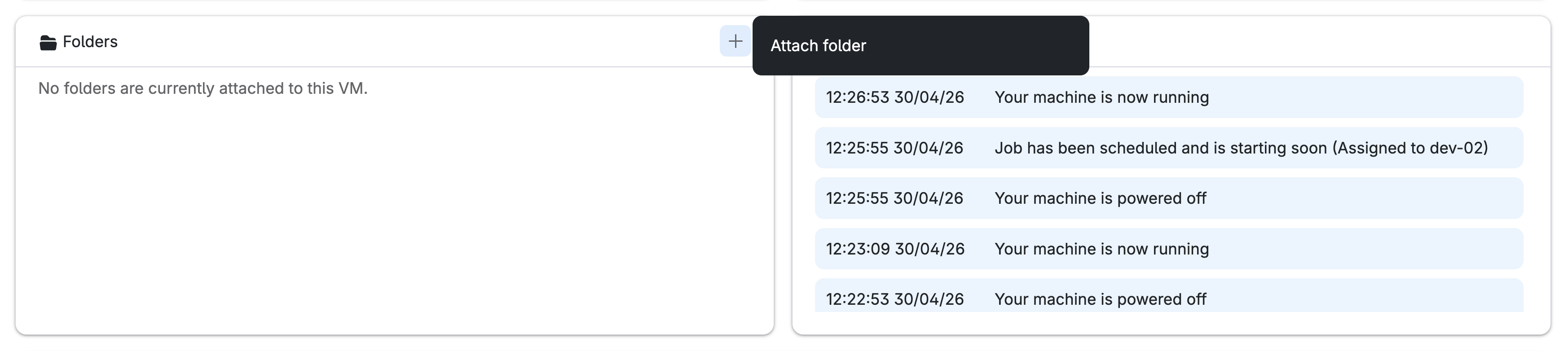
Additional folders may be attached anytime while the virtual machine is active:
Session Management
An active virtual machine session provide access to a terminal interface, a server console, and web-based software GUIs.
Open a terminal
It is possible to start a terminal window, by clicking on the button
at the top of the page.
Open a server console
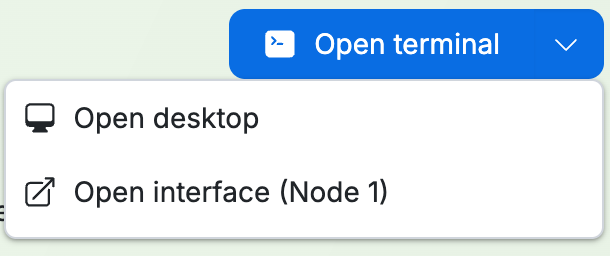
The dropdown menu
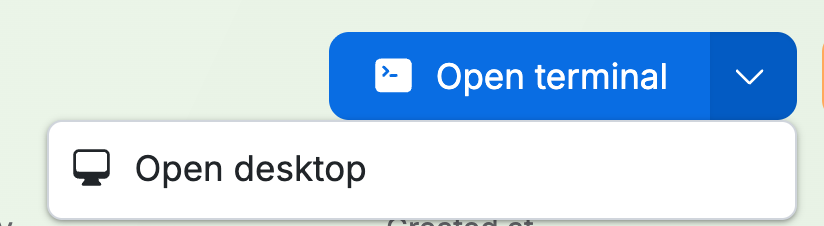
provides access to the server console. This interface requires authentication using the username ucloud. The password must be configured by opening the VM terminal, in the job progress view, and executing the following command:
$ sudo passwd ucloud
Access a Web Interface
Attached public links facilitate remote access to web-based software interfaces (e.g., TensorBoard) running on the virtual machine. Open the VM terminal, in the job progress view, and launch the web application, e.g. by writing
$ tensorboard --logdir=/work/logs --bind_all --port=6006
The UI can be accessed by copying the public link in the browser, or by selecting Open interface from the terminal dropdown menu:
The public link provide external access to the web interface.
Note
The port selected for the public link must match the port used by the running software (in this example TensorBoard and the public link both must use port 6006).
Important
To ensure the interface remains persistent, execute the startup command within a terminal multiplexer like tmux or screen.
Contents